
Volkswagen Taos: Infotainment system
The Infotainment system combines entertainment, communication, vehicle settings, navigation-related functions, media playback, smartphone integration, and selected online services in one central interface. In the Volkswagen Taos, this system is designed to help the driver and passengers manage everyday functions more conveniently while keeping important controls accessible from the vehicle display.
The available menus, buttons, display layouts, and functions depend on the country, model version, vehicle equipment, software version, connected services, and the mobile devices being used. Some functions may only be available when the vehicle is stationary, when a compatible phone is connected, or when an active service contract is in place.
WARNING
Using the Infotainment system while driving can distract the driver from traffic. Driver distraction can cause accidents, serious injuries, and fatal injuries.
- Only adjust complex settings, enter destinations, pair mobile devices, or change detailed system options when the vehicle is safely parked.
- Always drive attentively and responsibly.
- Use voice control, steering wheel buttons, or preset favorites whenever possible to reduce manual operation while driving.
NOTICE
Incorrect operation, unsuitable connected devices, damaged cables, or unsupported data carriers can cause malfunctions in the Infotainment system or connected equipment.
- Use only suitable, undamaged cables and compatible devices.
- Do not press the screen with sharp objects or excessive force.
- Keep liquids, dust, and foreign objects away from the display, USB ports, and media connections.
The Infotainment system in the Volkswagen Taos may include functions for radio, media, Bluetooth, App-Connect, vehicle settings, sound adjustment, Wi-Fi, online services, and system information. The exact scope depends on the installed equipment and regional availability.
First steps
Before using the Infotainment system for the first time, familiarize yourself with the basic controls, screen areas, menu structure, and available connection options. This helps make operation easier and reduces the need to search through menus while driving.
After switching on the ignition, the Infotainment system may start automatically. Depending on vehicle equipment, user settings, privacy choices, and online service status, the system may display a start screen, a user profile selection, legal information, privacy settings, or the last active menu.
Initial setup
- Read and confirm any important messages shown on the screen.
- Select the preferred language, region, units, date, and time settings if prompted.
- Adjust display brightness, sound settings, and volume to a comfortable level.
- Pair a compatible mobile phone only when the vehicle is safely parked.
- Review privacy settings, online service permissions, and user profile options before enabling connected features.
When setting up the Volkswagen Taos Infotainment system, take time to check which features are available in your vehicle. Some functions may require a Volkswagen user account, an active data connection, a compatible smartphone, or acceptance of terms of use.
Basic operation
Use the touchscreen gently with a fingertip and follow the menu prompts shown on the display. Depending on the system version, certain functions may also be operated through touch sliders, physical buttons, steering wheel controls, voice commands, or shortcut tiles.
Common first steps include selecting an audio source, adjusting the volume, connecting a phone by Bluetooth, setting up App-Connect, choosing Wi-Fi options, opening vehicle settings, and saving preferred menu shortcuts. These settings can make daily use more convenient once they are configured correctly.
Safe use while driving
- Set up navigation, music, phone pairing, and app permissions before starting the trip.
- Avoid scrolling through long lists or reading detailed information while driving.
- Keep the display clean so that information remains easy to read.
- If a function requires too much attention, stop the vehicle safely before using it.
If the Infotainment system does not respond as expected, check whether the ignition is switched on, whether the selected function is available in your country, whether a mobile device is properly connected, and whether any required permissions were accepted. A temporary delay can occur after start-up, especially when online services, user profiles, or connected devices are loading.
For reliable operation in the Volkswagen Taos, keep connected devices updated, use approved cables, and follow the instructions shown on the Infotainment display. Correct first-time setup helps the system operate smoothly and makes everyday driving functions easier to access.
Introduction
The functions and settings of the Infotainment system depend on the vehicle equipment and are not available in all countries. In the Volkswagen Taos, the exact menu layout, available features, connected services, media options, and smartphone functions may vary depending on the installed system, software version, market, and optional equipment.
Prior to the first use
Before using the Infotainment system for the first time, read the following points so that you can use the available functions and settings correctly, safely, and without unnecessary interruptions:
- Observe the safety instructions ⇒ Safety instructions.
- Reset the Infotainment system to factory settings ⇒ System and sound settings.
- Find your favorite radio stations, also referred to in the following as stations, and save them on the station preset buttons to quickly access them ⇒ Radio.
- Only use suitable audio sources and data carriers ⇒ Media.
- Use current map data for the navigation system.
- Pair a cell phone in order to use the phone interface to make calls ⇒ Mobile phone interface.
- Register on VW Car-Net to use related services.
It is best to complete the first setup while the vehicle is safely parked. Adjusting sound settings, pairing phones, accepting online service terms, setting privacy preferences, or saving radio stations can take attention away from traffic if done while driving.
Other applicable documents
In addition to this manual, please refer to the following documentation when using this Infotainment system and its components:
- Supplements to your Owner's Manual.
- Operating instructions for the cell phone or audio sources.
- Operating instructions for external data carriers and players.
- Instructions for retrofitted or additional Infotainment accessories.
Different phones, media players, USB drives, apps, and connected accessories may behave differently with the Infotainment system. Reading the device manufacturer's instructions can help avoid connection problems, unsupported file formats, charging issues, or unexpected restrictions.
Safety instructions
- Some functions may contain links to websites that are administered by third parties. Volkswagen does not assume ownership of third-party sites reached through links and is not responsible for their content.
- Some functions may contain third-party information that originates from third-party providers. Volkswagen is not responsible for the accuracy, currentness, and completeness of this non-proprietary information, and for ensuring that the rights of third parties are not violated.
- The radio stations and owners of the data carriers and audio sources are responsible for the transmitted content.
- Parking garages, garages, underpasses, tunnels, high buildings, mountains and valleys and any other electrical devices being used, e.g. battery chargers, may interfere with the reception of cell phone, GPS and radio signals.
- Foil stickers or stickers with a metal layer placed on the antenna and on the windows can impair radio reception.
- Read and follow the applicable manufacturer's operating instructions when using cell phones, data carriers, external devices, and external audio and media sources.
The Infotainment system can process information from many different sources, including radio signals, navigation data, connected phones, online services, USB devices, and third-party apps. Because these sources are not always controlled by Volkswagen, availability, quality, and accuracy may vary.
WARNING
The Infotainment system's central processor is networked with the control modules installed in the vehicle. If the central processor is incorrectly repaired, removed or reinstalled, there is an increased risk of accident and injury due to the control module functioning incorrectly or not functioning at all.
- Never replace the central processor with a used central processor from a scrap vehicle or from recycling.
- Always have the central processor repaired, removed and reinstalled by suitably qualified professionals.
Volkswagen recommends contacting an authorized Volkswagen dealer or authorized Volkswagen Service Facility.
Because the Infotainment system in the Volkswagen Taos is linked to several vehicle functions, repairs should not be treated like a simple replacement of a consumer electronic device. Incorrect installation or unsupported components may affect communication between vehicle systems.
WARNING
Reading information on the screen, operating the Infotainment system and connecting, inserting or removing a data carrier or audio source while driving can distract from traffic. Displays and information on the screen may be difficult to read if the lighting conditions are unfavorable or if the screen is damaged or dirty. This may distract the driver from the traffic situation. Driver distraction can cause accidents and injuries.
- Always drive attentively and responsibly.
- Only carry out detailed menu operations, device pairing, destination entry, or media setup when the vehicle is safely parked.
- Keep the screen clean and easy to read so that brief glances do not become prolonged distractions.
Use steering wheel buttons, voice control, presets, or previously configured favorites whenever possible. These options can reduce the need to search through menus while driving the Volkswagen Taos.
WARNING
Setting the volume too high prevents you from hearing audible signals. Failure to hear audible signals from outside the vehicle can lead to accidents.
- Adjust the volume settings in the Infotainment system so that audible signals from outside the vehicle, such as sirens on emergency service vehicles, horns, railroad warnings, or other traffic sounds, can still be heard.
WARNING
Setting the volume too high can cause hearing damage even if you are exposed to a loud volume for only a short time.
- Select a volume that is at a comfortable level for all vehicle occupants.
- Avoid excessive volume levels.
- Lower the volume immediately if speech, outside warning sounds, or normal traffic noise can no longer be heard clearly.
WARNING
Sudden volume fluctuations can distract the driver, for example when an audio or media source is connected or changed. This could cause accidents and injuries.
- Reduce the volume level before changing or connecting an audio or media source, for example.
- Check the volume of connected phones, media players, and streaming apps before playback begins.
Different audio sources may start at different volume levels. A radio station, Bluetooth device, USB media source, navigation announcement, or smartphone app may sound louder or quieter than the previous source.
WARNING
The following conditions may restrict, interrupt or prevent emergency calls, phone calls and data transfers:
- The emergency call location is in an area with no cell phone and satellite reception, or insufficient reception.
- You are in a location where there is sufficient mobile phone and satellite reception, but the telecommunications provider's mobile communications network is unavailable.
- The vehicle components required for emergency calls, phone calls and data transfers are damaged, do not work or do not have sufficient power.
- The cell phone battery is empty or has an insufficient charge level.
Emergency communication and online functions depend on technical components, network coverage, GPS reception, and power supply. In tunnels, underground parking areas, remote regions, dense urban areas, valleys, or locations with network outages, these functions may be limited or unavailable.
For reliable operation of the Volkswagen Taos Infotainment system, keep compatible devices charged, use suitable cables, avoid unsupported accessories, and follow the prompts shown on the screen. If a function does not work as expected, check the connected device, signal reception, software version, user permissions, and vehicle settings before assuming a system fault.
WARNING
Radio stations can broadcast messages about disasters, emergencies, severe weather, road hazards, and other dangers. If these warnings are not received, delayed, or not issued, accidents and injuries may occur. It may not be possible to receive or send such messages under the following conditions:
- The current location is in an area with no cell phone reception or insufficient radio signal reception.
- The location has generally sufficient radio reception, but the radio station's frequency bands are malfunctioning, overloaded, unavailable, or temporarily interrupted.
- The speakers and the vehicle components required for radio reception are damaged, do not work, or do not have sufficient power.
Reception quality in the Volkswagen Taos can be affected by terrain, buildings, tunnels, weather, signal coverage, and the technical condition of the audio system. Do not rely on radio or online messages as the only source of emergency information.
WARNING
In some countries and mobile networks, emergency calls can only be made under the following conditions:
- A cell phone with an unlocked SIM card and sufficient calling credit is connected to the vehicle's phone interface.
- Adequate network coverage is available.
If mobile reception is weak or unavailable, emergency calls, service calls, and data transfers may not be possible. Always consider local conditions, especially in remote areas, underground parking garages, tunnels, mountain regions, or locations with poor network coverage.
WARNING
If a cell phone or CB radio is used inside the vehicle without connection to an outside antenna, the limit values for electromagnetic radiation inside the vehicle may be exceeded and may endanger the health of vehicle occupants.
- Keep the cell phone antenna at least 20 cm (approximately 8 inches) away from any active medical implants, such as pacemakers, because cell phones can impair the function of active medical implants.
- Do not carry a cell phone that is turned on directly above or in the immediate vicinity of any active medical implants, for example by keeping a phone in a shirt pocket.
- Immediately switch off cell phones if you suspect they could impair an active medical implant, such as a pacemaker, or another medical device.
Passengers who use medical implants or sensitive medical equipment should follow the instructions from the medical device manufacturer and keep mobile devices at a safe distance. When in doubt, switch off the mobile device or move it away from the person using the implant.
WARNING
Loose, unsecured, or incorrectly mounted cell phones, external devices, and accessories can be thrown through the vehicle interior during sudden steering, braking, or a collision. This can cause accidents and serious injuries.
- Secure or stow cell phones, external devices, and Genuine Volkswagen Accessories safely outside of the airbags' deployment zones.
- Always secure or store cell phones, external devices, audio sources, and accessories in the dedicated compartments and holders in the vehicle so that they cannot be thrown through the vehicle interior and cannot impede the driver.
- Never leave heavy, hard, fragile, or sharp objects in the pockets of clothing.
- Arrange cables for external devices and audio sources so that they are not in the way of the driver.
- Do not place a phone, tablet, media player, or cable where it can interfere with the pedals, steering wheel, gear selector, seat movement, or airbag deployment areas.
In the Volkswagen Taos, mobile devices and accessories should be secured before every trip. A device that slides from the center console, seat, or dashboard can distract the driver or become a dangerous projectile in an emergency stop.
WARNING
Driving recommendations and traffic signs displayed in the navigation system may differ from the actual traffic situation, and you must not be tempted to take safety risks.
- Always drive attentively and be ready to intervene at any moment.
- Always bear in mind that traffic signs, signal systems, traffic regulations, road markings, police instructions, and local circumstances have priority over the driving recommendations and displays in the navigation system.
- Always adapt your speed and driving style to the current visibility, weather, road surface, and traffic conditions.
Navigation information may be outdated, incomplete, delayed, or affected by GPS reception. Road closures, construction zones, temporary speed limits, detours, and local restrictions must always be followed even if the navigation display suggests something different.
NOTICE
Radiation from cell phones that are switched on can interfere with sensitive technical and medical devices, potentially causing malfunctions or damage to the devices.
- Always switch off the cell phone in areas with special regulations relating to or prohibiting the use of cell phones.
NOTICE
Setting the volume too high and excessively loud or distorted playback can damage the speakers.
- Select the volume setting so that the speakers are not damaged.
- Reduce the volume if the sound becomes distorted, rattling, harsh, or unusually loud.
Audio distortion is not only uncomfortable for occupants, but can also indicate that the speakers or amplifier are being stressed. Keep the volume at a clean, controlled level for long-term system reliability.
User information
- The Infotainment system requires a few seconds to perform a complete system start and will not respond to inputs during that time. During the system start, only the Rear Assist camera can be displayed.
- The Infotainment system must start completely before all displays can appear and functions can be performed. The length of time required for the system to start depends on the scope of functions in the Infotainment system and may be longer at very low or very high temperatures.
- Observe local regulations and legal requirements when using the Infotainment system and corresponding accessories, such as a headset or headphones.
- For the Infotainment system to function, it must be switched on and the vehicle must be set to the current date and time if necessary.
- A missing function key on the screen is not necessarily the result of a device error, but may correspond to the country-dependent equipment or the installed software version.
- Some Infotainment system functions can only be selected when the vehicle is stationary. In some countries, the selector lever must also be in the
 or
or
 selector lever position. This is not a malfunction, but rather compliance with legal regulations.
 - Some countries may have restrictions regarding the use of Bluetooth devices. Information can be obtained from the local authorities.
- If the 12 V vehicle battery has been disconnected, switch on the ignition before switching on the Infotainment system.
- Displays on the screen may vary due to differences in the settings, and the Infotainment system may function differently than described in this manual.
- The Infotainment system will switch off automatically when the engine stops and if the 12 V vehicle battery charge level is low.
- In some vehicles with a parking system, the volume of the current audio source may be automatically lowered when you shift into reverse. The volume reduction can be adjusted.
- The Infotainment system contains information about the software contained in the system and the licensing terms under:
Setup
 Copyright.
 - If you sell or loan your vehicle to someone, ensure that all saved data, files, profiles, paired phones, destinations, favorites, and settings are deleted and, if necessary, that the external SD card, external audio sources, and any data carriers are removed.
- Certain functions in the Infotainment system require an active VW Car-Net account for the vehicle and an online connection to the Internet. In order to enable functions to be carried out, data transfer must not be restricted.
When using the Infotainment system in the Volkswagen Taos, allow the system to finish starting before selecting menus or connecting devices. If the screen does not immediately respond after switching on the ignition, wait briefly rather than pressing the same control repeatedly.
Some displayed functions depend on equipment, country, service contracts, connected devices, software versions, privacy settings, and available data connections. A menu item that appears in another vehicle or in a manual illustration may not always appear in your vehicle.
Before selling, lending, or transferring the Volkswagen Taos to another driver, remove personal information from the Infotainment system. This may include Bluetooth pairings, contacts, call lists, navigation destinations, app permissions, online service accounts, Wi-Fi passwords, user profiles, and stored media data.
For dependable operation, keep the screen clean, use compatible accessories, maintain sufficient battery charge, and follow the prompts shown by the system. If a function is unavailable, first check legal restrictions, vehicle equipment, network reception, connected device settings, and whether the vehicle must be stationary before the function can be used.
Brands, licenses, copyright
Brands and licenses
Certain terms in this manual have the
 or
or
 symbols. These symbols identify emblems, trademarks, or registered trademarks. However, the absence of one of these symbols does not mean that the name, logo, technology, product designation, or brand is free of intellectual property rights.
Other product names are registered trademarks or protected marks of their respective rights holders. In the Volkswagen Taos manual, these references are used to identify technologies, services, media formats, software functions, and third-party systems that may be connected with the Infotainment system or related vehicle features.
- Manufactured under license from Dolby Laboratories. Dolby and the double-D symbol are trademarks of Dolby Laboratories.
- Manufactured under license from Dolby Laboratories. Dolby, Pro Logic and the double-D symbol are trademarks of Dolby Laboratories.
- All SiriusXM services require a subscription. See the SiriusXM Customer Agreement for complete terms at www.siriusxm.com (US) or www.siriusxm.ca (Canada). All fees, content and features are subject to change. Satellite and steaming lineups may vary. SiriusXM, Pandora and all related logos are trademarks of Sirius XM Radio Inc. and its respective subsidiaries. All rights reserved.
- HD Radio Technology manufactured under license from iBiquity Digital Corporation. U.S. and Foreign Patents. For patents see http://dts.com/patents. HD Radio, Artist Experience, and the HD, HD Radio, and "ARC" logos are registered trademarks or trademarks of iBiquity Digital Corporation in the United States and/or other countries.
- Apple Music is a trademark of Apple Inc.
- SPOTIFY and the Spotify logo are among the registered trademarks of Spotify AB. Compatible vehicle and Spotify Premium subscription required, where available.
- Android Auto is a certified trademark of Google, Inc.
- Apple CarPlay is a certified trademark of Apple, Inc.
- Bluetooth is a registered trademark of Bluetooth SIG, Inc.
- iPod, iPad, and iPhone are registered trademarks of Apple Inc.
- PEG-4 HE-AAC audio coding technology and patents licensed from Fraunhofer IIS.
- SD and SDHC are trademarks or registered trademarks of SD-3C LLC in the USA and other countries.
- Windows is a registered trademark of Microsoft Corporation, Redmond, USA.
- This product is protected by the intellectual property rights of Microsoft Corporation. Use or distribution of such technology outside of this product is prohibited without a license from Microsoft or an authorized Microsoft subsidiary.
The availability of individual technologies, services, apps, audio formats, and media functions can depend on the vehicle equipment, country, subscription status, compatible devices, software version, and the terms of the respective third-party provider. Some names listed here may appear in connection with App-Connect, Bluetooth, radio, media playback, USB functions, streaming services, or other Infotainment system features in the Volkswagen Taos.
Volkswagen does not acquire ownership of third-party brands or technologies by mentioning them in the vehicle documentation. The use of these names is intended only to explain compatibility, licensing, technical requirements, or service availability related to the Infotainment system.
Copyright
Audio and video files saved on data carriers and audio sources are generally subject to copyright regulations in compliance with applicable international and national laws. Observe legal regulations.
Before playing, copying, storing, sharing, or transferring media files through the Infotainment system, make sure that the content is used legally. Music, videos, audiobooks, podcasts, images, software, and other digital files may be protected by copyright, license agreements, or usage restrictions.
When using USB drives, SD cards, mobile phones, streaming apps, or other media sources in the Volkswagen Taos, the user is responsible for ensuring that the files and services are used in accordance with applicable law. Unauthorized copying or distribution of protected content may violate the rights of the copyright owner.
Overview of Infotainment system
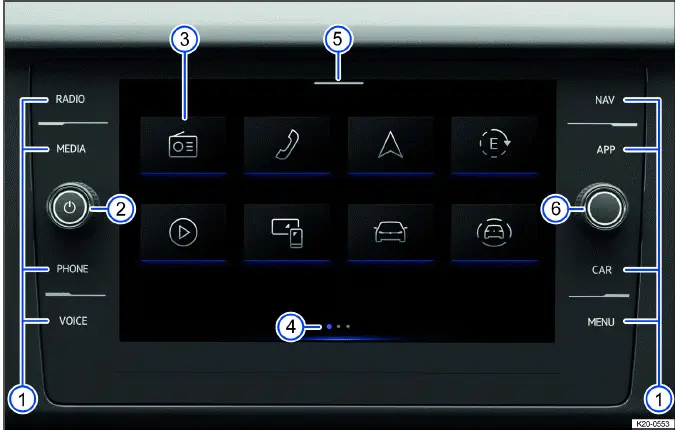
Fig. 134 Overview of the Infotainment system in the 8" version.
- Sensor areas for opening main menus and the home screen:
- RADIO⇒ Radio.
- MEDIA⇒ Media.
- PHONE⇒ Mobile phone interface.
- VOICE⇒ Voice control. The sensor area does not have a function in some countries.
- NAV⇒ Navigation.
- APP⇒ App-Connect. The sensor area does not have a function in some countries.
- SOUND.
- CAR.
- MENU : home screen.
- Rotary knob.
- Function key for main menu.
- Views.
- Control Center.
- Menu knob.
The 8" Infotainment system layout is designed to give quick access to the most frequently used menus. Depending on vehicle equipment and country, the Volkswagen Taos may provide touch-sensitive controls, on-screen function keys, configurable views, and a Control Center for selected shortcuts and notifications.
 Further information and tips
for operating the Infotainment system can be found in this Owner's Manual ⇒
Operating the
Infotainment system.
Further information and tips
for operating the Infotainment system can be found in this Owner's Manual ⇒
Operating the
Infotainment system.
- Touch-sensitive fields
1. To open a main menu, tap the corresponding sensor area, e.g. PHONE for the phone interface.
2. To open the home screen, tap MENU.
The touch-sensitive fields respond to a light touch and should not be pressed with excessive force. Use clean, dry fingers and avoid touching several sensor areas at the same time, because this can make operation less precise.
- Rotary knob
- Press to switch the Infotainment system on or off.
- Turn left to decrease the volume.
- Turn right to increase the volume.
The rotary knob provides a simple way to control power and volume without opening a menu. Adjust the volume so that warning signals outside the vehicle, such as emergency sirens or horns, can still be heard.
- Function key for the main menu
It is not possible to configure the position of the function keys.
1. To open a main menu, tap the corresponding function key e.g.
 for the phone interface.
Function keys give direct access to major system areas. Their position may be fixed by the system design, but the available functions can vary depending on the installed equipment and regional settings.
- Views
Certain menus and functions have multiple views with different content. The current view is highlighted.
- Tap a selection to switch to a view.
- Swipe left or right on the screen to switch between views.
Views allow related information to be separated into clear screen areas, such as media information, settings, vehicle data, or navigation-related displays. When using the Volkswagen Taos Infotainment system, switch views only when it is safe to do so.
- Control Center
The control center contains additional function keys for functions and notifications. Displayed functions can be configured ⇒ Personalizing the Infotainment system.
1. Tap the selection and swipe down to open the control center.
The Control Center can help keep frequently used functions within easier reach. Depending on the system configuration, it may show shortcuts, status information, connection indicators, or notifications relevant to the current operating state.
- Menu knob
1. Turn to control the list selection.
2. Press to confirm a selection.
The menu knob is useful when scrolling through lists or confirming highlighted options. It can reduce the need for repeated touchscreen inputs, especially when browsing stations, media lists, or menu entries.
Screen (touchscreen) (without position numbers)
You can operate the Infotainment system functions via the screen. You will find detailed explanations of the different finger movements in the digital manual for the Infotainment system, if available.
1. To open the digital manual for the Infotainment system, tap MENU
 .
.
The touchscreen is used for selecting menus, changing settings, entering information, and confirming prompts. Keep the screen clean and avoid sharp objects, because dirt, moisture, or pressure marks can make touch operation less accurate.
Scroll bars (without position numbers)
Certain menus and functions contain additional content above and below the content currently displayed on the screen.
1. Tap the scroll bar and swipe down or up to display additional content.
If a menu appears incomplete, check whether a scroll bar is shown. Additional options, warnings, settings, or information may be available outside the visible screen area.
Gesture control (without position numbers)
Gesture control can also be switched on. If gesture control is switched on, this is shown on the screen.
1. Tap MENU
 Screen
 Hand gesture.
Gesture control may allow selected operations without touching the display directly. Availability and recognition quality depend on vehicle equipment, system settings, hand movement, lighting conditions, and the active menu.
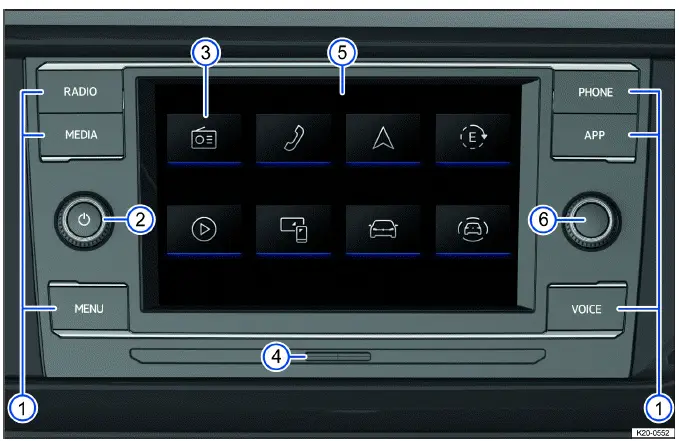
Fig. 135 Overview of the Infotainment system in the 6.5" version.
- Function keys for opening main menus and the home screen:
- RADIO : Radio mode ⇒ Radio.
- MEDIA : Media mode ⇒ Media.
- MENU : home screen.
- PHONE : Phone interface ⇒ Mobile phone interface.
- APP : App-Connect ⇒ App-Connect. The button does not have a function in some countries.
- VOICE: voice control ⇒ Voice control. The button does not have a function in some countries.
- Rotary knob.
- Function key for main menu.
- SD card slot ⇒ Media drives.
- Screen (touchscreen).
- Menu knob.
The 6.5" Infotainment system version uses a more button-oriented layout while still providing touchscreen operation. Depending on equipment, this version may include an SD card slot, physical function keys, rotary controls, and on-screen menus for media, phone, App-Connect, and other system functions.
 Further information and tips
for operating the Infotainment system can be found in this Owner's Manual ⇒
Operating the
Infotainment system.
Further information and tips
for operating the Infotainment system can be found in this Owner's Manual ⇒
Operating the
Infotainment system.
- Function keys
- To open a main menu, press the corresponding function key, e.g. PHONE for the phone interface.
- To open the home screen, press MENU.
- To start voice control of the connected cell phone, press and hold VOICE.
Physical function keys can provide quick access even when the screen is displaying another menu. Some keys may have no function in certain countries or with certain equipment versions.
- Rotary knob
- Press to switch the Infotainment system on or off.
- Turn left to decrease the volume.
- Turn right to increase the volume.
Use the rotary knob to make quick volume adjustments without taking attention away from the road for longer than necessary. Sudden changes in audio source may cause volume differences, so reduce the volume before switching sources if needed.
- Function key for the main menu
It is not possible to configure the position of the function keys.
1. To open a main menu, tap the corresponding function key e.g.
 for the phone interface.
Even if the function key positions cannot be changed, the system may still allow personalization of certain menus, audio settings, profiles, or shortcuts depending on the installed Infotainment version.
- Screen (touchscreen)
You can operate the Infotainment system functions via the screen. You will find detailed explanations of the different finger movements in the digital manual for the Infotainment system, if available ⇒ Operating the Infotainment system.
1. To open the digital manual for the Infotainment system, tap MENU
 Operation.
The touchscreen in the Volkswagen Taos should be operated with light, controlled touches. If the system is starting up, loading connected devices, or processing a previous command, wait briefly before entering the next command.
- Menu knob
1. Turn to control the list selection.
2. Press to confirm a selection.
The menu knob can be helpful when navigating lists such as radio stations, media tracks, contacts, or setup entries. Turning the knob moves through selections, while pressing it confirms the highlighted item.
Scroll bars (without position numbers)
Certain menus and functions contain additional content above and below the content currently displayed on the screen.
1. Tap the scroll bar and swipe down or up to display additional content.
When using either Infotainment system version in the Volkswagen Taos, remember that the displayed screen may not show every available option at once. Scroll carefully through menus to find additional settings, information, or controls before assuming a function is unavailable.
Media drives
SD card slot
Depending on the equipment installed in the Volkswagen Taos and the country in which the vehicle is sold, the Infotainment system may include an SD card slot. This feature is not fitted to every version of the system, and availability can vary by trim level, market specification, and the type of Infotainment unit installed.
The SD card slot is designed for compatible SD cards that contain supported media files, such as audio tracks or other readable media data. When a suitable card is inserted, the Infotainment system can access the stored content and display it through the Media menu. File types that are supported by the system are shown directly in the Infotainment system. Files saved in unsupported formats are ignored and will not appear for playback.
Before using an SD card in the vehicle Infotainment system, make sure the card is not damaged, is formatted correctly, and does not contain corrupted files. A clean file structure can help the system recognize media faster, especially when the card contains a large number of folders or tracks.
Dimensions for compatible SD cards:
 32 mm x 24 mm x 2.1 mm (approx. 1 in x 0.94 in x 0.083 in)
 32 mm x 24 mm x 1.4 mm (approx. 1 in x 0.94 in x 0.055 in)
Securely inserting an SD card
1. Carefully guide the SD card into the SD card slot with the angled corner inserted first and the contact surfaces facing downward. Push the card in gently until it locks into place with a noticeable click.
If the SD card does not slide in smoothly, do not continue pressing. Remove the card and check whether it matches the required size and whether it is being inserted in the correct direction. Forcing the card may damage the card, the slot mechanism, or the contacts inside the Infotainment unit.
NOTICE
Forcing the SD card into the slot, using an SD card with incorrect dimensions, or inserting an SD card adapter can damage the SD card slot, the card itself, or both components. The SD card slot in the Volkswagen Taos should only be used with cards that match the specified dimensions.
Inserting other objects, including SIM cards or non-compatible storage devices, into the SD card slot can damage the object, the slot, or both. The SD card slot is not a universal storage port and should only be used as intended.
- Do not use force when inserting SD cards.
- Check the required SD card dimensions before use.
- Do not use an SD card adapter in the SD card slot.
- Keep the SD card contacts clean and dry before inserting the card.
- Remove the SD card carefully to avoid bending the card or stressing the slot.
 If the Infotainment system cannot read the data on an SD card, a corresponding message will be shown on the screen. In this case, check the file format, card condition, and whether the data is saved in a structure the system can recognize.
 An SD card containing navigation data cannot be used as a normal storage medium for additional files. If other files are saved on a navigation SD card, the Infotainment system will not recognize them as usable media content.
Operating the Infotainment system
Opening the digital manual of the Infotainment system (if available)
Additional operating instructions, feature explanations, and helpful tips may be available in the digital manual built into the Infotainment system. This manual can be useful when learning menu paths, gesture controls, personalization options, or vehicle-specific functions.
1. Tap MENU  Instructions.
Switching the Infotainment System On or Off
The Infotainment system normally starts when the ignition is switched on, unless the system was previously turned off manually. When it starts, it restores the last selected volume level as long as that volume does not exceed the preset maximum switch-on volume.
This helps prevent the system from turning on too loudly after the vehicle has been restarted. In everyday use, the system is designed to resume quickly so the driver can access media, radio, navigation, telephone, and vehicle functions without unnecessary delay.
Vehicles with starter button: If the driver door is opened while the ignition is not active, the Infotainment system switches off automatically to help preserve battery power.
 If you switch on the Infotainment system manually while the ignition is not active, it will switch off automatically after approximately 30 minutes without user input.
Main menus on the home screen
The home screen may show different main menus as function keys, depending on the installed options, software version, regional configuration, and Infotainment system type. These function keys give fast access to frequently used systems and settings.
 Ambient lighting, Ambient light ⇒ Interior/reading lights, ambient lighting.
 App-Connect ⇒ App-Connect.
 Driver assistance ⇒ Driver assistance systems.
  Vehicle ⇒ Driver information.
  Help: Here, you can find additional information about Infotainment system functions and operation, such as the quick guide.
  or
or  Sound ⇒ System and sound settings.
  Climate control ⇒ Heating and air conditioning system.
  Media ⇒ Media.
  Navigation ⇒ Navigation.
  Radio ⇒ Radio.
  Legal.
  Setup ⇒ System and sound settings.
  Auxiliary heater.
  Telephone ⇒ Mobile phone interface.
Some menus may not appear if the related function is not installed, not enabled, or not supported for that market version. For example, navigation, auxiliary heater, ambient lighting, or certain driver assistance menus may depend on model configuration.
Configuring the home screen
In many versions of the Infotainment system, the layout of the function keys on the home screen can be adjusted. This allows the driver to place frequently used functions, such as Media, Telephone, Navigation, or Vehicle, in more convenient positions. Home screen configuration may be limited or unavailable on certain system versions.
1. Tap the function key and hold until the function key is highlighted.
2. Move the function key to the preferred position and release it.
After the icon is released, the system saves the new position. Organizing the screen around the features used most often can make this model easier to operate during daily driving, especially when switching between audio, phone, and vehicle settings.
Personalization
Depending on vehicle configuration, function keys and views can be personalized so that frequently used menus are easier to reach ⇒ Personalizing the Infotainment system.
Zooming in or out of pictures and maps shown on the screen
Recommendation: Use your thumb and index finger for controlled movement on the screen.
1. Tap and hold the screen with two fingers at the same time.
- To zoom in on pictures and maps shown on the display, slowly move your fingers apart.
- To zoom out of pictures and maps shown on the display, slowly move your fingers together.
Use slow and deliberate gestures rather than quick movements. This gives the Infotainment system enough time to register the command accurately and helps prevent selecting another function by mistake.
Personalizing the Infotainment system
Depending on the equipment installed, you can personalize the Infotainment system to reach favorite and frequently used functions faster. This is especially useful when several drivers use the same Volkswagen Taos or when the vehicle is used in different daily situations, such as commuting, navigation, or long-distance travel.
The Infotainment system views contain tiles that provide access to additional menus, vehicle functions, media options, communication features, and settings. These tiles can make the interface more convenient when they are arranged according to the driver’s habits.
Adjusting tiles
Tiles and the functions shown inside them can be adjusted in the Infotainment system views. Depending on the tile size, different functions may be available, and larger tiles may display more information directly on the screen.
1. Tap and hold tiles until an additional window appears.
2. Tap the desired function in the additional window. Various functions are available depending on the size of the tile.
Or: to return to View, tap any free area of the screen.
When adjusting tiles, choose functions that are useful during normal operation, such as media source selection, navigation information, telephone access, vehicle data, or sound settings. A clean layout helps reduce distraction and keeps the most relevant controls visible.
 There are always at least two views available. They cannot be removed. Depending on vehicle equipment, two additional views can be added. A maximum of four views can be displayed.
 For some tiles, more functions are available than can initially be seen in the additional window. To view all available functions, swipe up or down in the additional window.
Adjusting the control center
The Infotainment system Control Center can also be personalized to provide quicker access to favorite or frequently used functions. This area is useful for shortcuts that the driver wants to reach without navigating through several menu levels.
1. Open the Control Center.
2. Tap and hold the function until an additional window appears.
3. Tap the desired function in the additional window and hold until the function is highlighted.
4. Move the function to the preferred position and release it.
The active function is automatically removed from the control center and added to the additional window. This means the Control Center can be reorganized without duplicating the same shortcut in two places.
When setting up the Control Center, place the most practical shortcuts where they are easy to find. Features related to sound, phone connection, vehicle settings, or display options can often be managed more quickly this way.
 For the Control Center, more functions are available than can initially be seen in the additional window. Swipe left or right in the additional window to view all available functions.
Opening personalization tips (if available)
Further information and tips about personalization may be available in the digital manual for the Infotainment system. These instructions can help explain how to arrange views, tiles, and quick-access functions in a way that suits the driver.
1. Tap HOME  Adjustment.
Personalization settings may differ depending on the Infotainment system version, installed vehicle equipment, and regional software configuration. If a menu or function is not visible, it may not be available for that specific vehicle configuration.
System and sound settings
Changing settings
The symbols shown in the system and sound menus help identify whether a function is active, inactive, expandable, or adjustable. These symbols are used consistently across the Infotainment system, so once the driver understands them, menu navigation becomes quicker and more intuitive.
Any changes made in these menus are applied automatically when the menu is closed. In most cases, no additional confirmation is required. This allows the driver to adjust display, sound, language, connection, and system preferences without going through extra save steps.
 ,
,  or
or  The setting is selected and activated or switched on.
  ,
,  or
or  The setting is not selected and deactivated or switched off.
  or
or  Open the drop-down list.
  Increase the set value.
  Reduce the set value.
  Go back stepwise.
  Go forward stepwise.
  Use the slide control to continuously change the set value.
System settings
The system settings menu may contain functions, information pages, and adjustment options that control how the Infotainment system behaves. The exact content of the menu can vary depending on equipment level, software version, regional specification, and whether certain online or connectivity features are available for the vehicle.
- Screen.
- Time and date.
- Language.
- Additional keyboard languages.
- Units.
- Voice control.
- Wi-Fi.
- Data connection.
- Manage mobile devices.
- Restore factory settings.
- System information.
- Copyright.
- Configuration assistant.
These settings are useful when preparing the Volkswagen Taos for daily use, pairing phones, changing measurement units, adjusting display behavior, or checking software and system information. Some functions may be hidden or unavailable if they are not supported by the installed Infotainment version.
Opening system settings
1. Tap MENU  Setup.
Sound settings
The sound settings menu may include options for the equalizer, listening position, volume behavior, tone balance, and audio setup. Depending on the sound system installed, the available adjustments can range from simple bass and treble settings to more detailed sound distribution controls.
Use these settings to make radio, media, phone audio, and connected external sources sound more balanced inside the cabin. A small change in equalizer or position settings can make speech clearer, reduce harshness, or improve music playback depending on the source quality.
Opening sound settings
1. Tap MENU  Sound.
Adjusting the volume of external audio sources
Before increasing the volume on an external audio source, lower the volume of the Infotainment system. This helps prevent sudden loud playback when a phone, music player, or other connected device starts playing through the vehicle speakers.
If the connected audio source plays too quietly, first increase the output volume on the external device itself. If the sound is still too low, set the input volume in the Infotainment system to Medium or Maximum. This is often needed when the connected device has a low output level or when the media file itself was recorded at a lower volume.
If the connected external audio source plays too loudly or the sound becomes distorted, reduce the output volume on the external device. If distortion remains, set the input volume in the Infotainment system to Medium or Quiet. Distortion can occur when both the device and the vehicle input level are set too high at the same time.
For the best result, adjust the external device and the vehicle system gradually. A balanced input level helps protect sound quality and prevents unnecessary speaker noise, especially when switching between radio, media, Bluetooth audio, and other sources.
Cleaning the screen
The Infotainment screen should be cleaned carefully because it is a touch-sensitive surface. Dust, fingerprints, and smudges can reduce visibility, but using the wrong cleaning method can damage the display surface or affect touch operation.
When cleaning the screen, please note this checklist:
 The Infotainment system is switched off.
 Use a soft, clean cloth that has been slightly moistened with water.
Or: use a cleaning cloth which is available from an authorized Volkswagen dealer or authorized Volkswagen Service Facility.
 For stubborn dirt:
Wipe gently in small movements and avoid pressing hard on the screen. If dirt does not come off immediately, dampen the cloth slightly rather than scraping the surface. Never spray liquid directly onto the screen, because moisture can run into the edges of the display.
NOTICE
If the screen is cleaned with incorrect cleaning agents or when dry, it may be damaged. A dry cloth can drag dust across the surface and leave fine scratches, while unsuitable chemicals can affect the screen coating.
- Only apply gentle pressure.
- Do not use aggressive cleaners or products that contain solvents. These cleaners can damage the device surface and may cause glare or visible marks on the screen.
- Do not use abrasive cloths, paper towels, sharp tools, or household glass cleaners on the display.
NOTICE
If the cloth used to clean the screen is too moist, the screen may no longer respond correctly or may not switch off as expected. Excess moisture can interfere with touch operation.
- Dry the screen and then leave the vehicle locked from the outside for at least two minutes.
Radio
Introduction
In radio mode, the Infotainment system can receive available radio stations through different reception modes and allow the driver to save favorite stations for quick access. This makes it easier to return to frequently used stations without searching for them each time.
Available reception modes depend on the vehicle equipment, the country, the installed Infotainment system, and the radio services supported in that region. Certain reception modes may be discontinued, switched off, renamed, or no longer offered in individual countries.
In some countries, and depending on the system configuration, Internet Radio may also be available through Online Functions. This can provide access to a wider selection of stations, but it may require a data connection and suitable service availability.
 The radio stations are responsible for transmitted content.
 Other electrical devices connected in the vehicle can impair radio signal reception and cause noise in the speakers.
 Decals or metal-coated stickers on the vehicle windows can impair radio reception in vehicles with window antennas.
For clear reception in the Volkswagen Taos, avoid placing electronic accessories, chargers, or aftermarket devices close to antenna-related areas when possible. Reception quality can also change depending on terrain, buildings, weather conditions, and distance from the transmitter.
Function descriptions
Selecting a Reception Mode
Different stations are available depending on the selected reception mode. The choice of reception modes is influenced by the equipment installed, local broadcasting standards, and market availability. For example, one vehicle may offer FM and AM, while another may also support DAB or Internet Radio.
1. To open the list of reception modes, tap Source.
2. Select a reception mode, e.g. FM.
After a reception mode is selected, the system displays stations or frequencies that correspond to that mode. If reception is weak or a list appears incomplete, changing the source or updating the station list may help.
Searching For and Selecting a Station
Stations can be searched for and selected in several ways. The available search options vary according to the reception mode, current signal quality, station list availability, and system version.
Searching for a Station in SCAN mode
In SCAN mode, the stations in the selected frequency band are tuned automatically one after another and played for approximately 5 seconds each. This function is helpful when driving in an unfamiliar area or when quickly checking which stations are currently available.
1. To start SCAN mode, tap  or
or  SCAN, depending on the vehicle equipment.
SCAN mode starts and the current station is shown on the display.
The SCAN function key is shown.
2. To select a station, tap SCAN.
SCAN mode stops and the station is tuned.
Selecting a Station Using the Multi-function Steering Wheel
Depending on the vehicle equipment, stations can be selected from the station list or from saved favorites using the multi-function steering wheel. This allows the driver to change stations without reaching for the screen.
- To select the previous station, press
 on the multi-function steering wheel.
 - To select the next station, press
 on the multi-function steering wheel.
If the steering wheel buttons do not change stations as expected, check whether the radio screen, station list, or favorites view is active. Button behavior can differ depending on the current audio source and system settings.
Selecting a Station Using a Frequency Band
1. To open the frequency band, tap  .
.
2. Tap the cursor, press and slide it along the frequency band, then release it at the desired frequency.
Or: tap a point on the frequency band. The cursor automatically jumps to the corresponding frequency.
The station at the set frequency will be tuned.
This method is useful when the desired station frequency is already known. It also allows more direct tuning than scrolling through a station list.
Selecting a station from the station list
Depending on the equipment and reception mode, the station list may need to be updated manually if the vehicle has moved to a different broadcast area since the list was last opened. The station list in the FM/DAB frequency band generally updates automatically.
1. Open the station list.
2. Tap the desired station.
The selected station will be tuned.
If a station is no longer available, the system may not tune it correctly until the list refreshes. This can happen after long-distance driving, crossing regional broadcast areas, or moving through areas with weak signal coverage.
Selecting a Station and Saving as a Favorite
Up to 36 stations or frequencies from different reception modes can be saved as favorites. This gives quick access to preferred stations without repeated searching.
Saving a Station as a Favorite
1. Tune the desired station.
2. Tap  .
.
Or: tap and hold the station on the station list.
The storage locations are displayed.
3. Tap and hold a storage location until the station is saved.
The station is saved at the selected storage location.
If a station was already saved at the storage location, this station will be removed from the storage location and replaced by the new station.
Saving favorites can make the radio function in this model more convenient, especially when switching between local stations, news, music, traffic reports, or online stations that are used regularly.
Other Functions in Radio Mode
The functions listed below depend on the installed Infotainment system, region, broadcasting services, and available online features. Not every function is available in all countries or with every equipment package.
Station logos
Station logos can be preinstalled for some frequency bands in the Infotainment system. When available, they make the radio interface easier to scan visually because stations can be recognized by their logos rather than text alone.
If the Automatic station logo selection function is activated in the settings, the station logos are automatically assigned to the stations.
In Internet radio mode, the Infotainment system obtains the station logos from an online database and assigns them automatically to the stations, provided the connection and station information are available.
Switching on Automatic Station Logo Assignment
1. In radio mode, tap  or
or  and activate
  Automatic station logo selection.
Assigning station logos manually
Station logos cannot be assigned manually in the AM frequency band. Manual logo assignment is used when the system does not automatically match the correct logo or when several stations have similar names.
1. Tap  Station logos in radio mode.
2. Select a station to which a station logo is to be assigned.
3. Select the station logo.
4. This process can be repeated for additional stations.
5. To finish assigning station logos, tap  .
.
After logo assignment is complete, return to the radio screen and check whether the station is displayed with the selected logo. If the logo does not appear immediately, changing stations or reopening the radio screen may refresh the display.
Functions and radio symbols
Radio
The radio functions available in the Volkswagen Taos depend on the installed Infotainment system, market specification, vehicle equipment, and the radio services offered in the country where the vehicle is used. Some features may be present in one version of the system but unavailable in another, even when the radio menu appears similar.
Depending on configuration, the radio system may support traditional broadcast sources, digital services, online stations, satellite radio, and saved favorite stations. The exact combination of functions can vary, so the menu shown on the screen should always be treated as the reference for the equipment fitted to the vehicle.
- AM tuner.
- FM dual tuner with diversity aerial for improved reception stability.
- Station list of FM stations.
- Summarized memory list.
- Merging of all stations stored on station preset buttons into one clear list.
- Up to 36 station preset buttons as storage locations for favorite stations or frequencies.
- Station logos, where supported by the system and reception mode.
- Antenna amplifier.
- Internet radio, depending on online service availability and data connection.
- HD Radio, where offered by the market and supported by the system.
- Satellite radio:
- SiriusXM.
- SiriusXM online.
These radio functions are designed to make station selection faster and more organized. Presets are useful for everyday driving, while station lists, logos, and reception modes help the driver find available content without manually searching through every frequency.
General symbols for radio operation
The symbols may appear slightly different depending on the Infotainment system version, screen layout, software level, and selected radio source. Even when the graphic design changes, the basic purpose of each symbol remains similar: selecting a source, moving between stations, opening lists, showing information, or entering settings.
1. To open the main menu, open the home screen and tap  ⇒ Overview of Infotainment system.
 AM Select an AM reception mode.
  FM Select an FM reception mode.
  Internet Radio Select the Internet Radio reception mode.
  SXM Select the satellite radio reception mode.
 Display the selected station with additional information.
  Select the previous station from the station list or the station saved on the previous preset button.
  Select the next station from the station list or the station saved on the next preset button.
  Display the preset list with favorites.
 Displayed in a station list: stations already saved as favorites.
  or
or  Opening the settings.
When a favorite symbol appears in the station list, it helps identify stations that have already been stored. This prevents saving the same station twice and makes it easier to manage presets when several reception modes are available.
Symbols in the AM frequency band
 Show the station list of AM stations.
  Manually update the station list.
  Display the frequency band for manual selection of the AM frequency.
The AM band can be useful for talk radio, regional information, traffic updates, and long-distance reception in certain areas. Reception quality may change noticeably depending on terrain, electrical interference, time of day, and distance from the transmitter.
Symbols in the FM frequency band
 Show the station list of FM stations.
  Display the frequency band for manual selection of the FM frequency.
Only possible when the summarized station list is switched off.
FM radio normally provides clearer sound than AM when reception is strong. If the vehicle moves into an area with weak signal coverage, the station list may change, and manual tuning can help find a specific frequency directly.
Symbols for Internet Radio operation
Internet Radio expands the available station selection beyond local broadcast signals. It may allow browsing by country, language, genre, popularity, podcasts, or the last station played. Availability depends on online services, data connection, region, and system support.
 Open full-text search.
  Unable to receive Internet radio.
  Display the last internet radio station.
  Display the 100 most popular internet radio stations.
  Display the available Internet Radio podcasts.
  Display Internet Radio stations that originate from the preferred country.
  Display Internet Radio stations that transmit their program in the preferred language.
  Display Internet Radio stations whose programs are of the preferred genre.
  Display the station selection.
If Internet Radio cannot be received, check whether the data connection is active and whether online services are available for the current location. In some cases, a station may also be temporarily unavailable because of the provider, not because of the Infotainment system.
Symbols for HD Radio operation
HD Radio can provide enhanced digital broadcast content where the service is supported. Depending on the station, additional substations may be available, offering more program choices under the same main station frequency.
 Station supports HD Radio.
  or
or  Tune the HD Radio substations.
  Open the Emergency list of the
  "HD Radio Emergency Alerts" function. HD Radio logo.
When HD Radio reception is available, the Volkswagen Taos Infotainment system may show extra station information or give access to digital subchannels. If the vehicle leaves a strong signal area, the system may switch behavior or temporarily lose access to HD content.
Symbols for satellite radio operation
Satellite radio gives access to channel-based programming where the service is available and active. Depending on subscription status and market support, channels may include music, news, sports, entertainment, and other themed content.
 Display the channel list.
  Open the window for entering the channel number.
Use the channel list to browse available satellite radio content, or enter a channel number directly if the desired station is already known. Reception and channel availability may vary depending on service coverage, subscription, signal conditions, and system configuration in this model.
Online Functions
Depending on the equipment installed in the Volkswagen Taos, the Infotainment system may offer online functions while operating in radio mode. These features expand the available listening options beyond traditional broadcast reception and can provide access to online radio content when the required services are active.
Online radio functions are not available in every country, every vehicle model, or every Infotainment configuration. Availability may depend on regional services, the vehicle’s software, subscription status, data connection, privacy settings, and the active online service package.
Online functions in radio mode may include Internet Radio, online station search, podcasts, streaming-based content, and additional station information, depending on the system version and service availability.
Prerequisites for using online functions in radio mode:
 The vehicle is equipped with VW Car-Net.
 You have registered and have an active VW Car-Net user account.
 The vehicle is assigned to your VW Car-Net user account.
 You have purchased a corresponding active data package for an Internet connection and have also purchased a "Plus Online Radio subscription" through the VW Car-Net app or via the VW Car-Net website, USA: vw.com/carnet, Canada: vw.ca.
Before using these features, make sure the account, vehicle assignment, subscription, and data package are all active. If one requirement is missing, Internet-based radio functions may not appear in the menu or may be shown but unavailable for use.
Internet radio
Internet radio is a reception mode for online radio stations and podcasts that operates independently of AM, FM, and DAB reception. Because the signal is transmitted over the Internet rather than through a local broadcast tower, listening is not limited in the same way as regional radio reception. This can give the driver access to a much wider range of stations, including programs from other cities, countries, languages, or music categories.
Internet radio is only available when the Infotainment system has an active Internet connection. Streaming online content can use mobile data, and costs may apply depending on the data package, service plan, or mobile network arrangement. For the best experience in the Volkswagen Taos, use Internet Radio where the connection is stable and the required online services are supported.
 This function of Internet Radio may depend on the vehicle privacy settings in some countries.
If Internet Radio does not work even though the subscription is active, check the privacy settings, data connection, online service status, and whether Internet-based features are permitted in the current vehicle profile. Some privacy modes can restrict online communication and prevent station lists or streaming content from loading.
Searching For and Filtering Stations
In Internet Radio mode, stations can be searched for or filtered by category. This makes it easier to narrow a large online station database to the type of content you want, such as a specific station name, music genre, spoken program, podcast, country, or language.
1. Open the station selection.
2. Select the categories by which to filter the stations.
Or: to start the full-text search, tap  .
.
The input line is displayed.
3. Enter the name of the preferred station or the preferred category.
The list of the found stations updates automatically during input.
4. Tap the desired station.
When searching, enter only the most important part of the station name if the full name does not produce results. Online databases may list stations under shortened names, regional names, or alternative branding. Filtering by genre, country, or language can also help when the exact station name is unknown.
SiriusXM
SiriusXM is a satellite radio service that can be received in the USA and Canada. The service is subscription-based and must be enabled for the Infotainment system by phone or online before full access is available. Depending on the service package, SiriusXM may provide music, news, sports, talk shows, entertainment, and other channel-based programming.
SiriusXM subscriptions can be activated via cell phone. Activation may require the radio ID, account details, and a valid subscription plan. Once activated, the service status can usually be checked directly through the satellite radio settings.
The current subscription status can be shown in the settings in satellite radio mode. If channels are missing or access is limited, the subscription may need to be refreshed, updated, or reactivated.
Further information can be found in the settings in satellite radio mode under Help and support and on the Internet: In the USA:
www.siriusxm.com
In Canada:
www.siriusxm.ca
Displaying the SiriusXM ID
Each radio has its own SiriusXM ID, which is used to manage the subscription and activate the service for that specific Infotainment system. This ID may be needed when contacting SiriusXM support, setting up a new account, transferring service, or checking activation status.
1. In satellite radio mode: Tap  Subscription Information.
Or: In satellite radio mode: Tap  and enter channel number "0".
The SiriusXM ID, the website, and the phone number for the SiriusXM activation hotline will be displayed on the screen.
Write down the SiriusXM ID exactly as shown on the display if it is needed for activation or customer support. A wrong digit can prevent the subscription from being linked to the correct radio unit.
SiriusXM with 360L
Your vehicle can be equipped with SiriusXM with 360L. SiriusXM with 360L combines satellite reception and streaming connectivity to offer a broad selection of music, news, sports, talk, entertainment channels, and on-demand content. In the Volkswagen Taos, this can create a more flexible listening experience than standard satellite radio alone, provided the required services and connection are available.
With SiriusXM with 360L, the listening experience may be personalized through recommendations and features based on your listening habits. The system can help surface channels, shows, or content that match what you use most often, making it easier to find relevant programming without browsing through every category manually.
SiriusXM live channels The channels available depend on the enabled services. All available channels are displayed in the channel list.
If a channel does not appear in the list, check whether it is included in the active subscription package and whether the vehicle has adequate satellite or streaming connectivity. Channel availability may also vary by country, service plan, signal conditions, and online service status.
Each SiriusXM channel is identified by its own channel number. This makes it possible to open a specific channel directly when the number is already known, instead of browsing through the full channel list.
The channels are arranged in the channel list according to their channel number. In the Volkswagen Taos Infotainment system, channels can also be opened directly by entering the channel number under  .
.
All channels are also organized by category. Inside each category, the channels are grouped by genre or type of content, which makes browsing easier when the driver is looking for a certain style of programming, such as music, sports, news, talk shows, comedy, or entertainment.
Setting SiriusXM live channels
Available SiriusXM channels can be selected in several ways depending on the vehicle equipment, Infotainment system version, and the controls installed in the vehicle. The system may allow direct channel entry, screen selection, or operation using a physical control knob.
1. In satellite radio mode: Tap  and set the preferred channel using the channel number.
Or: Tap the title image of the preferred channel.
Or: turn the knob, select the preferred channel and press it.
2. Optional: To search for channels with content related to what is currently playing, tap Related in the station display.
A list with related content will be displayed. This can help find similar music, programs, artists, shows, or topics without manually browsing through all SiriusXM categories.
On Demand
SiriusXM with 360L can provide access to a wide range of on-demand content, such as concerts, shows, interviews, special programs, and other saved or streamable content. Availability depends on the active subscription, service coverage, and system support.
Opening on-demand content
1. Select a channel category, such as music, and then select a genre, such as rock.
2. Tap On Demand.
3. Optional: To search for on-demand content related to the content currently being played, such as shows or similar programs, tap Related in the station display.
A list with related content that is currently playing will be displayed.
On-demand content is useful when the driver wants more control over listening than a live broadcast allows. Instead of waiting for a program to air again, available content can be selected directly from the SiriusXM interface.
Live Sports
With the "Live Sports" category, SiriusXM can display available game broadcasts that are currently being aired. This allows the driver and passengers to find live sports coverage more quickly without searching through unrelated channels.
Opening Live Sports
1. Select the category "Live Sports".
2. Select the preferred transmission of a game.
The available broadcasts may depend on the active SiriusXM package, regional rights, event schedule, and service availability. If a game is not shown, it may not be included in the current subscription or may not be broadcasting at that time.
Play Ahead Controls
With the "Play Ahead Controls" function, both live and on-demand content can be paused, resumed, and moved forward or backward during playback. These controls make SiriusXM with 360L more flexible than traditional live radio, especially when replaying a segment or skipping ahead within available content.
Depending on the type of content and the service status, some playback controls may be limited. Live broadcasts, on-demand shows, and streaming content may not always offer the same skip or replay behavior.
Presets
SiriusXM live channels and on-demand shows can be saved as presets for faster access. Up to 36 presets can be stored, allowing frequently used channels, shows, or content types to be reached without repeating the search process.
Saving SiriusXM content as Presets
1. To save a live channel currently being played back or an on-demand show currently being played back as a preset, press and hold a preset bank.
Or: In the channel list or the list of on-demand shows, press and hold the preferred content and select a preset bank.
Saving presets in the Volkswagen Taos is especially convenient for drivers who regularly switch between music channels, sports coverage, news, and favorite shows. If an existing preset location is reused, the previously saved content may be replaced by the newly selected channel or show.
Listening profile
The personalized listening profile stores recommendations based on the program content currently being played and the most recent listening history. The profile is updated regularly, so recommendations can change over time as listening habits change.
The listening profile can be set up in the Volkswagen user account and used with the SiriusXM app. When connected correctly, this can help keep the listening experience more personal across supported services and devices.
Setting up a listening profile
1. In satellite radio mode: To create a new listening profile, tap  .
.
Or: In satellite radio mode: Tap  Create new listening profile.
Follow the on-screen prompts to complete the profile setup. Some steps may require an active account, a supported subscription, and a working online connection.
Personalized SiriusXM recommendations
A collection of personalized SiriusXM recommendations is available for each listening profile. These recommendations are based on listening behavior and can help surface channels, shows, artists, genres, or programs that match the user’s recent activity.
The personalized SiriusXM recommendations are updated regularly based on what you are listening to. This means the suggestions may become more relevant as the system gathers more listening history.
Displaying personalized SiriusXM recommendations
1. Tap For You.
The For You area can be useful when the driver does not want to search manually. It presents suggested content in one place, making the SiriusXM experience in this model quicker and more tailored to the user.
Listening history
For each listening profile, a list of recently played SiriusXM content is displayed. This listening history can be opened and reset at any time, which is useful when returning to a recently heard program or clearing older activity from the profile.
Resetting listening history may also change future recommendations because the system uses recent playback information to update the profile. If several people use the same vehicle, separate listening profiles can help keep recommendations more accurate for each user.
HD Radio
HD Radio is a digital radio service that can be received in the USA and Canada where supported stations are available. In the Volkswagen Taos, this function can improve the radio listening experience by adding digital broadcast content alongside traditional AM and FM reception.
HD Radio Technology
Some AM and FM radio stations also transmit their programming digitally using HD Radio Technology. When this service is available, the Infotainment system can receive additional digital information from the station and may offer clearer sound or extra program channels, depending on reception quality and station support.
When the function is activated in the AM or FM settings and the current station supports HD Radio Technology, the  function key appears on the Infotainment system display. The system switches automatically between digital and analog reception according to signal quality. If the station is being received only in analog mode, the function key is grayed out.
This automatic switching helps keep playback available even when the digital signal becomes weak. In areas with strong HD Radio coverage, digital reception may provide improved audio quality and extra station data. In weaker signal areas, the system may return to analog reception to avoid interruptions.
Some stations offer additional substations through HD Radio Technology, also known as multicast programming. If this is available, HD1 is displayed after the frequency of the main station. Additional substations are marked as HD2, HD3, and so on.
Tuning the HD Radio Substations
1. Tap  to cycle through the available substations.
Or: Select an additional station from the station list.
Or: to cycle through the additional stations individually, tap < or >.
The substation that is currently selected is displayed after the main station on the screen, for example HD3 for the second additional substation.
Substations can provide different content from the main broadcast, such as alternative music formats, news, talk programming, sports coverage, or special local content. Availability depends entirely on the broadcaster.
 The available substations of the current stations are displayed on the station list.
Additional HD Radio Technology services
1. To select the desired additional service, tap View.
Additional services may include station information, program details, visual content, or other broadcast data depending on what the station transmits. Not every HD Radio station provides the same additional features.
HD Radio Emergency Alerts
The "HD Radio Emergency Alerts" function can be used to receive reports about unusual and potentially life-threatening events, such as natural disasters or other serious public safety situations. These alerts are shown as pop-up notifications while the radio is on. The function is activated at the factory.
If you tap Remind me later when a notification appears, the notification will appear again after approximately ten minutes. If you tap Close, the notification will be moved to the Alert list. If the "HD Radio Emergency Alerts" function is deactivated, these notifications are moved directly to the Alert list and indicated by  and a number in the status bar. The number on the symbol shows how many notifications are available.
Emergency alerts are intended to provide important information quickly, but availability depends on broadcaster participation, regional service support, and reception conditions. If the vehicle is outside the HD Radio broadcast area or the station does not transmit alerts, no message may appear.
Activating or deactivating HD Radio Emergency Alerts
1. In radio mode, activate or deactivate  Radio
Radio  Emergency notifications.
Opening the Alert list
Up to five notifications can be displayed in the Alert list. If more notifications are received, older entries may be replaced depending on the system behavior.
1. Tap  in radio mode.
Media
Introduction
In media mode, the Infotainment system can play media data from compatible data carriers and connected devices. Favorites can also be saved for quicker access, allowing frequently used music, audio files, playlists, or media sources to be reached more easily.
Media playback in the Volkswagen Taos may vary depending on the Infotainment system, vehicle equipment, country specification, and the type of device connected. Some sources may be available only on certain system versions.
Depending on the vehicle equipment, the following data carriers can be used as media sources:
- USB storage medium, for example a USB flash drive.
- Bluetooth device, for example a cell phone.
- SD card.
Depending on the vehicle equipment, the following types of media files can be played:
- Audio files, for example music.
- Video files.
You can also use streaming services, depending on the vehicle equipment and in some countries ⇒ Online Functions.
For smooth playback, use media sources that are in good condition and contain supported file formats. The system may ignore unsupported files, unreadable folders, damaged media, or files saved in a structure that the Infotainment system cannot process correctly.
Restrictions and instructions for data carriers
Dirty, overheated, or damaged data carriers should not be used. Always read and follow the information provided by the manufacturer of the storage device or connected media source.
Differences in quality between data carriers from different manufacturers can cause problems with media playback. A low-quality or heavily worn USB drive, SD card, or other storage medium may load slowly, disconnect unexpectedly, or fail to display files correctly.
Incorrect configuration of data carriers can make them unreadable. This may include unsupported file systems, damaged partitions, unusual folder structures, or files that were copied incorrectly.
The storage volume, physical condition, number of copy and delete processes, file system, folder structure, and amount of saved data can all increase the time needed to read a data carrier. A large storage device with many folders and files may take longer to scan than a smaller, well-organized device.
Playlists only define the order of playback and refer to the saved location of media files inside the folder structure. No actual media files are stored inside playlists. To play a playlist correctly, the media files must still be present in the storage location referenced by the playlist.
If files from a playlist have been moved, renamed, deleted, or saved on another device, the playlist may not play correctly. Keeping music folders organized and avoiding unnecessary file changes can help the Infotainment system read media more reliably in this model.
 Volkswagen is not responsible for damaged, altered, or lost files on data carriers.
Before connecting a storage device, it is recommended to keep a backup copy of important media files. Vehicle media systems are designed for playback, not for protecting or recovering data stored on external devices.
Playing a Media File
Connecting and Selecting a Media Source
To play music, video, or other supported media through the Infotainment system, first connect a compatible media source. Depending on the equipment installed in the Volkswagen Taos, this may be a USB storage device, a Bluetooth-connected phone, an SD card, or an available online media source.
1. Connect the media source.
2. Tap My media and select your preferred media source.
After the source is selected, the system reads the available files and displays them according to the available structure, such as folders, albums, artists, playlists, or categories. If the device contains a large number of files, the first scan may take longer than usual.
Searching For and Selecting Media Files
You can search for and play media files from a connected source in several ways. The available options depend on the media source, the file information saved with the tracks, the folder structure, and the Infotainment system version.
Searching the Selected Media Source
All media files stored on the connected media source can be found either by browsing through the folder structure or by using full-text search. Folder browsing is useful when the files are arranged manually, while search is faster when the desired track, artist, album, or file name is known.
1. Display the folder structure.
2. Search the folder structure for the desired track.
Or: to start the full-text search, tap  .
.
The input line is displayed.
3. Enter the name of the desired track.
The list of found tracks updates automatically during input.
4. Tap the desired track.
When playback starts, if the selected file is located in a folder on a media source, all media files stored in that folder will be added for playback. This allows the system to continue playing related files without requiring a new selection after each track.
If a playlist is played back, all available tracks listed in that playlist will be added for playback. The playlist itself only controls the order and references the original file locations, so the related media files must still be present on the storage device.
5. Close the selection with  .
.
Saving the Media File as a Favorite
Only media files that are saved in My Media in the music and video folders can be stored as favorites. Depending on the information attached to the file, you can save individual tracks, albums, artists, or genres for quicker access.
1. Start playback of the desired track.
2. Open the favorites list.
3. Tap an available storage location.
Or: tap an already occupied favorite position, then press and hold it for approximately three seconds.
4. Select from the selection list, for example title.
The available selection options depend on the metadata attached to the media file. If no genre information is stored in the music file, the genre cannot be saved as a favorite. Well-organized media files with correct titles, artists, albums, and genres are easier to manage in the Infotainment system.
If a video file is currently being played, only that specific video can be saved as a favorite.
The selection is saved in the selected favorite position. If the favorite position was already occupied, the previously saved favorite will be replaced by the new selection. In the Volkswagen Taos, this makes it possible to keep frequently used media content close at hand without repeatedly browsing through folders or lists.
Selecting a Media File from Favorites
1. Open the favorites list.
2. Tap one of your favorites.
Depending on the saved selection, all tracks included in the current playback context may be added to playback. For example, selecting a saved album or artist may start more than one track rather than only a single file.
Entertainment playback via the Infotainment system
The Infotainment system can play music and videos when the file format, connected media source, and system configuration support playback. Audio output is routed through the vehicle speakers, while compatible video content is shown on the display only under permitted conditions.
Video mode
In video mode, the Infotainment system display can play a video from a data carrier. The video file must be stored in a supported format and located on a compatible media source.
The video sound is played back through the vehicle speakers.
The video image is only displayed when the vehicle is stationary. When the vehicle is moving, the Infotainment system display switches off the video image for safety reasons, while the video sound continues to play.
In some countries, due to road safety regulations, no video image is shown even when the vehicle is stationary.
Depending on vehicle equipment and market availability, video from a streaming service can also be played back ⇒ Online Functions. A stable Internet connection is required for streaming playback. Costs may be charged by your mobile network provider or service plan when streaming online content.
Functions and Symbols
Functions
The available media functions and supported media formats depend on the vehicle equipment, Infotainment system version, country specification, and the media source being used. Some functions may not be available in all markets or with every system configuration.
- Media playback and media control via Bluetooth.
- Audio playback in these formats:
- AAC.
- APE.
- ALAC.
- FLAC.
- MP2.
- MP3.
- MP4.
- Vorbis.
- OPUS.
- WMA.
- WAV.
- Video playback in these formats:
- MPEG-1 and MPEG-2 (.mpg,.mpeg,.mkv,.avi).
- ISO MPEG-4 ASP; Xvid (.mp4,.m4v,.mov,.mkv,.avi).
- ISO MPEG-4 AVC/H.264 (.mp4,.m4v,.mov,.mkv,.avi).
- Windows Media Video 9 (.wmv,.asf,.mkv,.avi).
- Cross-device playlists.
- Cross-source media database: My Media.
- Data from all media sources connected to the Infotainment system are stored in a media database.
- If My Media is selected, the categories, for example music, and connected media sources are displayed.
- All media files from USB devices are filtered by category, for example albums. This category view is always displayed in My Media.
- The classic folder structure of the individual USB data carriers can also be found in the My Media menu.
- Media search.
- Media streaming online.
For reliable playback in the Volkswagen Taos, use clearly named folders, supported formats, and properly copied media files. Damaged files, unusual file structures, missing metadata, or unsupported codecs can prevent some tracks or videos from appearing in the menu.
Symbols
The symbols depend on the vehicle equipment and are not available in all countries. Their appearance may also vary depending on the Infotainment system version, display layout, and selected media source.
General symbols
1. To open the main menu, open the home screen and tap  ⇒ Overview of Infotainment system.
Or: Press MEDIA.
 Start replay.
  Pause replay.
  Go to the previous track.
  Skip to the next track.
  Repeats the current track.
 Repeats all tracks.
  Activate random playback.
  Search current media source in list view.
  Close list view.
  Open the favorites list.
  Go back one folder level in the media source.
  Opening the settings.
These symbols are used for the most common media actions. They allow the driver or passenger to start playback, pause content, move between files, search a connected source, open favorites, or adjust media settings without leaving the media interface.
Symbols for media sources
 My Media: select cross-source media database My Media as the media source. Connected USB devices may be selected under My Media.
  Select a device connected via Bluetooth as a media source.
  Set up available streaming services.
Streaming services that have already been set up are represented by their own logos in the list of media sources. If a logo is not shown, the service may not be installed, configured, supported in the region, or connected to an active account.
Symbols for categories and groups of media files
 Music tracks.
  Videos.
  Playlists.
  Albums.
  Artists.
  Genres.
  Podcasts.
  Audiobooks.
These categories help organize large media libraries. When metadata is complete, the system can group files by album, artist, genre, playlist, podcast, or audiobook, making browsing faster and more convenient.
Video replay symbols
 Replay video in full-screen mode.
  Minimize replay.
Video replay symbols are shown only when video playback is supported and the selected file or source allows video output. For safety reasons, the image may be restricted while driving, while audio playback may continue through the vehicle speakers.
Online Functions
Depending on the equipment installed in the Volkswagen Taos, the Infotainment system may provide online functions in media mode. These functions can expand entertainment options beyond files stored on a USB drive, SD card, or Bluetooth device by allowing supported online media services to be used directly through the system.
Online functions in media mode are not available in every country, every vehicle model, or every Infotainment configuration. Availability can depend on market support, active services, data connection, privacy settings, software version, and the online package linked to the vehicle.
Online functions in media mode may include streaming services, online media access, and related connected features. If a function is not shown in the menu, it may not be supported by the system, may not be active for the current region, or may require additional setup.
Prerequisites for using online functions in media mode:
 The vehicle has VW Car-Net.
 You have registered and have an active VW Car-Net user account.
 Your vehicle is assigned to your user account.
 You have purchased a corresponding active data package through the VW Car-Net app or through the VW Car-Net website, USA: vw.com/carnet, Canada: vw.ca.
Before using media-related online features, check that the account, vehicle assignment, and data package are active. If one of these requirements is missing, the Infotainment system may not display the streaming option, or the service may appear but remain unavailable.
Streaming services
Streaming services allow compatible online audio or media content to be played through the Infotainment system, provided the service is supported and properly connected. This can be useful when the driver prefers online playlists, subscription-based content, or cloud-based media instead of locally stored files.
Prerequisites for using streaming services:
 The requirements for using online functions in media mode have been met.
 You have your own user account for the relevant streaming service.
A separate streaming account may be required because VW Car-Net provides the connection and vehicle-side access, while the streaming provider controls the media library, login profile, subscription, and available content.
Setting up streaming services
Depending on the vehicle equipment and in some countries, streaming services can be used directly through the Infotainment system ⇒  Introduction. An active Internet connection is required to use streaming services ⇒
  Introduction.
1. Select Media Streaming as the media source.
A list of available streaming services is displayed.
2. Select the desired streaming service.
Either an input field for entering the registration data is shown, or a guide for registering with the provider is displayed.
3. Enter the login data for the desired user profile and confirm.
The streaming service will be added as a new function key in the list of media sources.
After setup, the service can usually be selected like another media source. If playback does not start, check the Internet connection, subscription status, login details, and whether the service is supported in the current country.
 Depending on the country, you may need to log in to the streaming service again if you change your privacy settings, for example.
Privacy settings can affect whether online services are allowed to exchange data with the vehicle. If the media streaming function stops working after a privacy change, sign in again and confirm that online communication is permitted for the active profile.
Navigation
Introduction
The current vehicle position is determined by a global satellite system. To guide the driver to the selected destination as accurately as possible, the navigation system compares satellite positioning, vehicle movement data, available map material, and, where supported, traffic information.
Acoustic navigation announcements and graphic displays guide you toward your destination. The system may show route lines, turn instructions, lane guidance, estimated travel time, distance to the destination, and other route-related information depending on the Infotainment version and available navigation data.
In the Volkswagen Taos, navigation is designed to support the driver, but it does not replace attention to road signs, traffic rules, lane markings, or real road conditions. Always follow legal traffic regulations and adjust to the actual situation on the road.
Depending on the country, some Infotainment system functions may not be selectable on the screen when driving above a certain speed. This is not a malfunction. It is a legal and safety-related restriction intended to reduce driver distraction.
WARNING
If settings are adjusted, destinations are entered, or navigation information is changed while driving, the driver may be distracted and cause accidents and injuries.
- Always drive attentively and responsibly.
- Only adjust settings, enter destinations, or change navigation information when the vehicle is stationary.
- Plan the route before starting the trip whenever possible.
- If a change is needed during the drive, allow a passenger to operate the system when safe and permitted.
 If you missed a turn on your route, the navigation system may recalculate the route.
 The quality of the driving directions depends on the available navigation data and any reported traffic incidents.
 Traffic information is only given in the navigation system if the available VW Car-Net service has been activated.
Route guidance can change when new traffic data, road closures, or route conditions are detected. If the system offers an alternative route, review it carefully and follow it only when it is safe and legal to do so.
Navigation restrictions
If the Infotainment system cannot receive data from GPS satellites, for example in a tunnel, underground parking area, dense urban area, or covered road section, navigation may still continue using the vehicle's sensors.
In areas that are not digitized or are only partially digitized in the Infotainment system memory, the system will still try to provide route guidance. However, the route may be less precise, and some roads, addresses, or destination details may not be shown correctly.
If navigation data is missing or incomplete, the vehicle position may not be determined accurately. This can result in route guidance that is less precise than usual, especially near new roads, recently changed intersections, construction zones, or areas with limited map coverage.
Routing is subject to ongoing changes, such as new streets, construction zones, road closures, changed traffic directions, renamed streets, or updated house numbers. Using outdated navigation data can lead to errors, unnecessary detours, or uncertainty during route guidance.
For the best navigation performance in this model, keep map data and online services up to date when updates are available. Even with current data, the driver remains responsible for checking real-world conditions and choosing a safe route.
Function descriptions
Please read the introductory information and heed the Warnings and Notice ⇒  and
and  Safety instructions.
Voice guidance
Navigation messages are spoken driving instructions provided for the current route. In the Volkswagen Taos, these announcements help the driver follow route guidance without needing to look at the screen constantly.
The type, timing, and frequency of navigation messages depend on the selected settings and the current driving situation. For example, the system may speak more often at the beginning of route guidance, near intersections, on highways, around roundabouts, or when several maneuvers occur close together.
If the destination cannot be reached exactly, for example because the address is outside a fully digitized map area, the system may announce that the destination area has been reached. In this case, additional information about the direction and remaining distance to the destination may also be shown on the Infotainment display.
During dynamic route guidance, reported traffic incidents along the route may be announced. If the route is recalculated because of traffic, road conditions, or a change in driving behavior, the system may provide an additional voice message so the driver understands why the guidance has changed.
You can adjust or mute the volume during a traffic announcement. After that adjustment, all other navigation announcements will be played at the same volume level or remain muted, depending on the setting selected.
 Navigation messages will not be given if the Infotainment system is muted.
For clearer guidance, set the navigation volume before starting the trip. This helps avoid changing sound settings while driving and makes route instructions easier to hear over road noise, music, or conversation.
Adapting the Navigation Map
To keep the map easy to read, the navigation view can be adjusted with enhanced finger movements. These gestures allow the driver or passenger to move the map, zoom in or out, tilt the view, or rotate the display to better understand the route, surrounding streets, and upcoming maneuvers.
Moving the navigation map
Recommendation: Use your index finger.
1. Move the navigation map with your finger.
Dragging the map is useful when checking nearby roads, looking ahead on the route, or viewing an area outside the current vehicle position.
Zooming in or out on the map view
Recommendation: Use your index finger.
1. Tap and hold the map twice in a row.
2. To zoom out of the map view, move your finger upwards. To zoom in on the map view, move your finger downwards.
This one-finger zoom gesture is helpful when the other hand is not available, but it should only be used when it is safe and does not distract from driving.
Zooming in or out on the map view
Recommendation: Use your thumb and index finger.
1. Tap and hold the map with two fingers at the same time.
2. To zoom out of the map view, slide your fingers towards each other. To zoom in on the map view, slide your fingers away from each other.
Zooming out gives a broader view of the route and surrounding area, while zooming in provides more detail for turns, streets, exits, or destination approach. In this model, the gesture works much like zooming on a smartphone screen.
Tilting the map view
Recommendation: Use your index and middle finger.
1. Tap and hold the map with two fingers at the same time, held horizontally next to each other.
2. To tilt the map view to the front, move your fingers upwards. To tilt the map view to the back, move your fingers downwards.
Tilting the map can make the route appear more three-dimensional, which may help when viewing longer stretches of road or understanding the road layout ahead.
Rotating the map view
Recommendation: Use your thumb and index finger.
1. Tap and hold the map with two fingers at the same time.
2. Turn your fingers clockwise or anti-clockwise to turn the map view.
Rotating the map can help align the display with the direction of travel or make it easier to compare the navigation view with the real road layout. If the view becomes confusing, return to the standard orientation before continuing route guidance.
Route plan
The route plan can contain several destinations arranged one after another. The starting point is always the current vehicle position as determined by the Infotainment system. The route plan may include useful route information, such as waypoints, destination suggestions, traffic-related events, and other available navigation data.
Stopovers can be moved to a different position in the list when the route needs to be reorganized. Tapping an event opens a dialog box with additional options. The options shown depend on the type of event, the active route, available map data, traffic information, and the current navigation settings.
Using the route plan in the Volkswagen Taos can be practical when planning a trip with several stops, such as a fuel stop, restaurant, charging point, hotel, or another intermediate destination before the final address.
Opening and closing the route plan
1. Tap the route plan to open it.
2. To stop route guidance, tap  .
.
3. To stop the route guidance to the destination or waypoint, tap  next to the destination in the route plan.
Before deleting a destination or waypoint, check that the correct route item is selected. Removing the wrong stop can change the remaining route and may require the destination to be entered again.
Editing route guidance
To edit route guidance, move the stopovers or the destination in the route plan.
When several stops are included, changing their order can affect the distance, arrival time, and route calculation. After editing the route, review the updated guidance before driving further so the planned trip still matches the intended destination sequence.
1. Tap and hold the desired destination until it is clearly highlighted on the screen.
2. Move the destination to the preferred position in the route plan and release it.
The route will be recalculated.
After the destination or waypoint is moved, the Infotainment system updates the route order and calculates the new guidance. In the Volkswagen Taos, this is useful when several stops are planned and the driver wants to change the trip sequence without deleting and entering destinations again.
Additional dialog box in the route plan
Tapping entries in the route plan may open an additional dialog box with more options for the selected entry. The available options depend on the type of entry that is tapped, the current route guidance status, the available map data, and the navigation settings that are active at the time.
Functions in the split screen:
Display on map Displays the selected destination, waypoint, or route event directly on the map so its location can be checked visually.
Add waypoint Adds a waypoint to the current route guidance, allowing the route to include an additional stop before the final destination.
Direct route Starts direct route guidance to the selected entry, usually by prioritizing that destination over the current route sequence.
Delete Deletes a waypoint from route guidance. Before deleting, check that the correct stop has been selected, because removing a waypoint can change the remaining route.
Avoid Avoids traffic disruptions or selected route events when possible. The route will be recalculated based on the available navigation data.
Stop route guidance Ends the current route guidance and stops active navigation instructions.
These options make the route plan more flexible during trip planning. They can help adjust a route around traffic, add a stop, inspect a destination on the map, or end guidance when it is no longer needed.
Closing an additional dialog box in the route plan
1. Tap a free area outside of the additional window.
Setting preferred POI categories
The navigation system offers different points of interest, for example gas stations, parking areas, restaurants, hotels, service facilities, or other useful locations. These POIs may appear through quick select symbols when entering destinations, in the route plan, and on the map.
You can prioritize how these symbols are displayed under  Basic function settings
  Preferred POI categories. The system can also learn preferred categories automatically based on repeated use.
Setting preferred POI categories can make navigation in the Volkswagen Taos more practical during everyday driving. For example, if fuel stations or parking locations are used often, these categories can be shown more prominently so they are easier to select when planning or adjusting a route.
Saved data
To make destination entry faster and improve route guidance, the Infotainment system stores certain data, such as frequently driven routes, selected destinations, positioning data, and usage patterns. This information helps the system provide quicker suggestions and more relevant route options.
Saved data can be helpful when the same destinations are used repeatedly, such as home, work, regular shopping areas, schools, fuel stops, or other common locations. However, users who prefer less personalization can delete this information or deactivate learning functions where available.
Delete saved data
1. Tap  Basic functions
  Delete usage pattern.
2. Tap confirm to delete the data.
Deleting saved data removes stored usage information used for route suggestions. After deletion, the system may need time to learn new patterns again if the learning function remains active.
Learning usage patterns
While driving, the navigation system can save routes traveled and destinations reached in order to create automatic destination suggestions. Destinations are learned with reference to the time of day and the day of the week, so regular trips can be recognized more accurately.
The navigation system can suggest pre-learned routes. Selecting one of these suggested routes will start route guidance. This can reduce the number of steps needed to begin a familiar trip.
Route guidance follows the selected route until the vehicle deviates from it. If you leave the planned route, the system recalculates and guides you back to the selected route by the most direct available path.
Relevant traffic disruptions are considered during route guidance. If navigation data and an alternative route are available, the system may avoid important traffic delays, closures, or disruptions.
If you are driving a pre-learned route without active route guidance, the destination can be added to the route plan automatically. Route guidance does not always need to be started manually for a journey to a pre-learned destination. If necessary, the system can warn about traffic disruptions along the expected route.
A predicted arrival time is displayed so the driver can estimate the remaining travel time. This can be especially useful for routine trips where traffic conditions change from day to day.
You can activate or deactivate this function at any time and delete the saved data used by this function. In this model, this gives the driver control over whether the system should learn regular routes or operate with less personalization.
Activating or deactivating "Learn usage pattern"
1. To open this function's settings, tap  Basic function settings.
2. Tap Learn usage pattern.
Displaying Suggested Routes
1. Tap  .
.
Suggested routes are based on learned driving behavior and may appear when the system recognizes a regular destination or route pattern. Always check that the suggested route matches your intended destination before starting guidance.
Deleting saved "Learn usage pattern" data
1. To open this function's settings, tap  Basic function settings.
2. Tap Delete usage pattern.
After the saved usage pattern data is deleted, previously learned suggestions may no longer be available. The system can begin building new suggestions again only if the learning function is active.
Functions and Symbols
Please read the introductory information and heed the Warnings and Notice ⇒  and
and  Safety instructions.
Navigation
Navigation features vary by trim, Infotainment version, regional map package, and connected-service support. Some menu items appear only when the required map data, phone connection, online service, or country-specific feature package is present.
Functions
- Entering a destination and calculating a route to the selected location.
- Simultaneous display of two navigation maps, for example on the central screen and in the instrument cluster where supported.
- Personal destinations, including saved places and frequently used addresses.
- 3D City Maps, where detailed city map data is included.
- Online Map Update, when the vehicle supports map updates through connected services.
- Online Traffic Information, if the traffic service is active and live traffic data can be received.
In the Volkswagen Taos, these navigation tools help the driver plan routes, compare destination choices, review traffic conditions, and follow guidance with less effort. The exact screen layout may look slightly different from one Infotainment version to another.
Symbols
Navigation symbols are influenced by the installed equipment, market version, screen size, software level, selected map view, and whether route guidance is active. A symbol may also be hidden when the related feature is not supported or has no usable data at that moment.
General symbols
1. To open the main menu, open the home screen and tap  ⇒ Overview of Infotainment system.
 Destination search.
  Display navigation map.
  Open saved addresses from the contact list of the connected cell phone.
 Display destination memory.
  Destinations and stopovers along the current route.
  Personal destination suggestions, such as home address, work address, and favorite nearby POIs.
  or
or  Opening the settings.
These icons give fast access to the most common navigation areas. They let the driver search for a new destination, return to saved places, open route details, or adjust navigation preferences without moving through unnecessary menu layers.
Symbols on the map
The function keys and map displays shown are shaped by the active settings, current driving situation, route guidance status, traffic-data coverage, and the map area currently being viewed.
Traffic symbols, such as congestion or road-closure warnings, and POI symbols, such as gas stations, parking areas, restaurants, or service locations, appear on the map when the navigation data contains that information ⇒ Traffic information.
 Display current position.
  Display route options.
  Fully automatic map mode, including orientation in the direction of travel, position, zoom, and tilt.
  Determine driving direction and map tilt.
  Map scale.
  Display dialog box with additional options. Map menu with settings for navigation and navigation announcements.
Map controls make route guidance easier to read at a glance. Current position, route options, automatic orientation, and scale controls can help adapt the view for city streets, highway driving, rural roads, or the final approach to a destination.
Symbols in the route plan
 Display current position.
  Destination for the current route guidance.
  Ends the current route guidance.
  Close route plan.
The route plan icons help review the order of destinations and stopovers. They also make it easier to end active guidance or return to the main map after checking the planned trip.
Symbols in the dialog box
1. To open the additional window, tap the relevant map, route, or destination item.
 Display route overview and alternative routes to the current route guidance.
  Repeats the last navigation announcement.
  Mute or adjust the volume of navigation instructions.
Dialog box icons keep route-related actions close to the map view. They are useful for reviewing another route, replaying a missed voice prompt, or changing the guidance volume without leaving navigation.
Additional symbols
 Destination search: detailed destination input for an address.
Traffic disruptions
Traffic disruptions are shown on the map when the navigation data includes relevant incident information ⇒ Traffic information. These warnings can affect travel time, route choice, and the driver’s awareness of changing road conditions.
1. Tap a traffic disruption to open a dialog box with details ⇒ Function descriptions.
 Traffic jam.
  Accident.
  Ice.
Ice.  Road closed.
  Slip hazard.
  Danger.
  Construction zone.
  Strong wind.
Traffic warnings should always be compared with the real road situation. The navigation display can highlight possible hazards, but the driver remains responsible for reacting safely to congestion, weather risks, closed roads, construction areas, and other disruptions.
Inputting destinations and starting route guidance
Please read the introductory information and heed the Warnings and Notice ⇒  and
and  Safety instructions.
The methods for entering destinations differ by equipment package, Infotainment version, country specification, connected-service status, and map coverage. Some input methods may be missing from the menu if the required data or service is not present.
The different destination-entry options are located in the navigation system main menu ⇒ Introduction.
You can narrow the results list with specific suggestions, for example "nearby". This is helpful when looking for a place category rather than a complete street address.
For further information about symbols on the Infotainment system screen, see ⇒ Functions and Symbols in this Owner's Manual.
Enter address
Route guidance can be started by entering an address. While you type, the navigation system may suggest known destinations, saved places, previous addresses, or matching map results. You can also enter a new address that has not been used before.
 When inputting the address, input the name of the destination, not the postcode of the destination.
For best results, enter the destination as clearly as possible. Street names, city names, building names, or recognized place names may work better than incomplete search terms.
Selecting the destination and starting the navigation system
1. Tap  .
.
2. Enter the destination address and select your desired destination.
Or: tap  and enter the address via the input screen.
3. Tap Route.
Before starting route guidance, check that the selected destination matches the intended address, especially when several search results have similar names. This reduces the chance of being guided to the wrong location.
Quick start
1. Tap  .
.
2. Enter the address of the destination, tap the desired destination and hold for a few seconds.
 Enter the destination as accurately as possible. If there is an error in the destination entered, route guidance cannot take place or may lead to the wrong destination.
Destination suggestions
The navigation system uses saved data such as recent destinations, learned destinations, favorites, home address, and work address to suggest possible routes. In the Volkswagen Taos, this can shorten the time needed to begin a familiar trip.
Selecting the destination and starting the navigation system
1. Tap  .
.
2. Tap on the desired destination.
The route guidance starts automatically.
Suggested destinations should still be checked before driving. A suggestion may come from past use and may not always match the trip you want to take at that moment.
Last destinations
The navigation system stores up to ten of the most recent destinations so they can be selected again quickly. Once the list is full, each new destination replaces the oldest entry.
Selecting the destination and starting the navigation system
1. Tap  .
.
2. Tap on the desired destination.
3. Tap Route.
Quick start
1. Tap  .
.
2. Tap and hold the preferred destination for a few seconds.
Recent destinations are useful for returning to places visited shortly before, such as hotels, parking areas, service locations, restaurants, or temporary work addresses.
Favorite destinations
You can save up to 50 journey destinations as favorites. Favorite destinations are helpful for regularly visited places that should remain easy to access even after they no longer appear in the recent destinations list.
Saving a journey destination as a favorite
1. While entering a destination, tap on  in the additional window.
Selecting the destination and starting the navigation system
1. Tap  .
.
2. Tap on the desired destination.
3. Tap Route.
Quick start
1. Tap  .
.
2. Tap and hold the preferred destination for a few seconds.
Favorites make daily route setup more convenient, especially for addresses used regularly but not always predicted automatically.
Selecting on the map
The navigation map contains active areas that can be used for destination input. To choose a destination, tap the preferred position or location on the map. If usable map data exists for that point, route guidance can be started.
Entering a destination through the map depends on the current map data and is not possible for every position. Some areas may not contain enough digital information for exact address-based guidance.
Use the Offroad navigation system to enter a destination for a selected destination point with unknown data.
Offroad navigation
The Offroad navigation system calculates routes to selected destinations with unknown data. If the destination is not located on a known road or at a known position, the navigation system calculates the route up to the nearest point on the known road network and then completes the route to the destination using a straight line.
This function can help when selecting locations away from mapped roads, such as rural areas, campsites, open land, or places without a clear address. The driver must still judge whether the route is safe, legal, and suitable for the vehicle.
In order to start Offroad navigation, tap on a free area without positioning data.
Starting the navigation
1. Tap  .
.
2. Press and slide the map view until you can select your desired position. You can operate the navigation map using extended finger touches ⇒ Introduction.
3. Tap the preferred destination or any destination point on the map without positioning data.
4. Tap Route.
Using a contact's address data
Route guidance can be started using saved address data from a contact. This works only when the connected contact contains usable address information. Contacts without saved address data cannot be used for route guidance.
Starting the navigation
1. Tap  .
.
2. Tap on the preferred contact and address data.
3. Tap Route.
Contact-based navigation is convenient when a phone is connected and the address book is shared with the Infotainment system. Make sure the correct address type is selected if the contact has more than one saved location, such as home, work, or another address.
NOTICE
If the address data for your contact is out of date, the route guidance will nevertheless direct you to the stored address.
Please ensure the address for your contact is up to date. Outdated or incomplete contact information may cause the navigation system to guide you to the wrong place, even if the contact name is correct.
Navigation data
Please read the introductory information and heed the Warnings and Notice ⇒  and
and  Safety instructions.
The Infotainment system uses an internal storage medium for navigation data. In some countries, the required map material may already be installed when the vehicle is delivered, while in other markets certain regions or updates may need to be loaded later.
For accurate route guidance, the navigation data should remain current. Updated map information helps the system recognize newer roads, changed traffic layouts, updated addresses, road closures, renamed streets, and other route-related details that can affect guidance quality.
In the Volkswagen Taos, current navigation data is especially important when driving in areas with new developments, changed intersections, construction zones, or recently updated road networks. Outdated data may still allow route guidance, but the results may be less reliable.
NOTICE
If outdated navigation data is used, route guidance may be affected. The navigation system may not be able to calculate current routes correctly, or it may guide the driver to an incorrect destination, outdated road layout, or unavailable route.
- Always make sure the navigation data is kept up to date whenever updates are offered.
- Check the map data version before long trips if route accuracy is especially important.
Navigation Data Online - Additional Information
Regions in the navigation data that are not used may be removed from the system in certain situations, for example when the navigation data memory is running low on space.
If these regions are needed again later, the navigation system can download them again on request. A mobile online services contract is not required for this service. However, this feature is linked to vehicle equipment, country support, and the technical configuration of the Infotainment system.
1. Switch the ignition on.
2. Establish an Internet connection if it has not already been connected.
The navigation data is updated automatically in the background. This allows the map material for relevant areas to be refreshed without requiring the driver to manually start every small update.
Updating navigation data manually
Current navigation data for larger regions, such as Western Europe, can be downloaded online at www.volkswagen.com and stored on a suitable USB data carrier available from retailers. If the Infotainment system is switched off during the update process, installation is interrupted and continues automatically the next time the system is switched on.
1. Download and save the navigation data onto a USB data storage device.
2. Switch the vehicle ignition on.
3. Connect the USB data carrier to the Infotainment system while the vehicle is stationary.
The navigation data for frequently driven regions is updated automatically in the background. The process may continue during later drives, so the USB data carrier should remain connected long enough for the required data to be fully installed.
 While and after updating the navigation data, no message appears in the Infotainment system.
 If you update the navigation data manually, the USB data carrier must remain permanently connected. You will not receive a notification when the update is complete.
 Do not disconnect the USB data carrier from the Infotainment system for several days until the navigation data for visited regions has been fully downloaded and installed. Installation starts automatically in the background during the journey. Disconnecting the USB data carrier cancels the update process. If the data carrier is removed and the vehicle enters a new region, the navigation data for that region will not be updated because the USB data carrier is no longer available.
For the Volkswagen Taos navigation update process to work correctly, use a reliable USB storage device with enough free space and avoid removing it too early. If the update does not seem to take effect immediately, continue using the vehicle normally with the USB device connected so the background installation can finish.
Displaying the map data version
1. Tap HOME  System information.
Or: tap MENU  System information.
Checking the map data version can help confirm which navigation package is installed. This is useful before downloading updates, troubleshooting route guidance errors, or comparing the installed data with the latest available map version.
Traffic information
Please read the introductory information and heed the Warnings and Notice ⇒  and
and  Safety instructions.
Traffic information reception varies by equipment package, Infotainment version, online service support, and country. Some vehicles may show detailed traffic data, while others may not include this feature or may require an active online connection.
When an Internet connection is active, the Infotainment system can receive detailed traffic information automatically. The information is shown on the navigation map using symbols and color coding on the road network, helping the driver understand where traffic is flowing normally and where delays may occur.
Traffic disruptions
Traffic disruptions, such as traffic jams, road closures, accidents, or other delays, are displayed on the navigation map as symbols ⇒ Functions and Symbols.
The route plan shows current traffic disruptions when the relevant data is available to the navigation system. This can help the driver review possible delays before reaching the affected section of road.
If route guidance is active, traffic disruptions along the current route are displayed in the route plan. The route can be modified to avoid a disruption when an alternative route can be calculated.
Avoiding traffic disruptions
1. Tap the traffic disruption.
2. Tap Avoid.
The route will be recalculated.
After Avoid is selected, the system calculates a different route if suitable navigation data and road alternatives are available. The new route should still be checked against real road conditions, road signs, and local traffic rules.
 Only one traffic disruption can be avoided in this manner for each route guidance.
 Local warnings, for example severe weather alerts, can be played via the Infotainment system as a pop-up notification.
Traffic flow display
The traffic flow for current traffic disruptions is displayed on the navigation map using color coding on the road network. This makes it easier to identify slow traffic or congestion before reaching the affected road section.
Orange Stop-and-go traffic.
Red Traffic jam.
Color-coded traffic flow is a helpful guide, but it should not be treated as the only source of driving information. Conditions can change quickly, and the driver should always react to the actual situation on the road.
Mobile phone interface
Introduction
Using the phone interface, you can connect a compatible cell phone to the Infotainment system and operate selected phone functions directly through the vehicle display and controls. Call audio is played through the vehicle speakers, which allows hands-free communication without holding the phone. Depending on the equipment installed in the Volkswagen Taos, up to two cell phones can be connected to the Infotainment system at the same time ⇒ Coupling, connecting and managing.
The available phone functions can vary based on vehicle equipment, country specification, the connected cell phone, Bluetooth or Wi-Fi compatibility, and the operating system installed on the device. Some features may work differently after phone software updates, changes to privacy permissions, or changes in mobile network settings.
Phone call quality in the vehicle can be affected by high driving speeds, poor weather, rough road surfaces, heavy background noise, noise outside the vehicle, weak network coverage, or temporary signal interference. Even when the hands-free system is working correctly, the quality of the mobile network remains an important factor.
The phone interface may include an antenna amplifier that helps improve cell phone reception quality. This can be especially useful in areas where the mobile signal is weak or unstable, although reception still depends on the network provider, location, phone position, and device compatibility.
 You generally only need to pair a device such as a cell phone once. After pairing, the connection between the device and the Infotainment system via Bluetooth or Wi-Fi can usually be restored later without pairing the device again.
 When using the hands-free system, especially at a high volume, the conversation may also be heard by people outside the vehicle.
For privacy, reduce the call volume when parked in public places or when discussing sensitive information. Closed windows can reduce how much sound leaves the cabin, but they do not guarantee that a loud conversation will remain private.
Locations with special regulations
Switch off the cell phone and phone interface in locations where there is a risk of explosion or where the use of mobile devices is restricted. These places are not always clearly marked, so pay attention to posted warnings, local rules, and safety instructions from facility staff.
- Areas near pipes and tanks containing chemicals.
- Lower decks in ships and ferries.
- Areas near vehicles powered by liquefied petroleum gas, such as propane and butane.
- Areas with chemicals or particles in the air, such as flour, dust, or metal powder.
- All other locations where the engine or the cell phone must be switched off.
Examples can include fuel stations, industrial facilities, storage depots, blasting areas, certain workshops, and medical environments with sensitive equipment. When in doubt, switch the phone off and follow the local safety instructions.
NOTICE
Radiation from switched-on cell phones can interfere with sensitive technical and medical devices. This may cause malfunctions, incorrect operation, or damage to those devices.
- Always switch off the cell phone in areas with special regulations relating to or prohibiting the use of cell phones.
- Do not rely only on silent mode or airplane mode if the location specifically requires the phone to be switched off.
Types of phone interface
Depending on the country, equipment package, and Infotainment configuration, your vehicle may have different versions of the mobile phone interface. The menu appearance may be similar, but the supported features can differ.
- Phone interface basic configuration.
The phone interface uses the Hands-Free Profile (HFP) Bluetooth profile for transmission. This allows selected phone functions to be operated through the Infotainment system, while call audio is played back through the vehicle speakers.
This basic configuration is intended for hands-free calling and simple phone integration. Actual call quality can still depend on phone compatibility, Bluetooth connection stability, microphone pickup, and mobile network strength.
- Convenience phone interface.
Like the basic phone interface, the Convenience phone interface uses the HFP Bluetooth profile.
The Convenience phone interface can be equipped with the wireless charging function ⇒ Charging Options for Mobile Devices. To use wireless charging, place a suitable cell phone correctly in the storage compartment. Depending on the equipment and phone compatibility, the cell phone may connect to the vehicle antenna when placed in the compartment. This can improve reception and call quality in the Volkswagen Taos.
For best results, remove thick phone cases, metal accessories, magnetic holders, or objects between the phone and the charging surface if they interfere with charging or antenna connection. The phone should sit flat and stable in the storage area.
Wireless Charging Function and Connection to the Vehicle Aerial
Depending on vehicle equipment, model configuration, and country specification, a connection to the vehicle aerials can be established automatically on the driver's side when the wireless charging function is used through the storage compartment ⇒ Charging Options for Mobile Devices. This connection can help reduce interfering signals in cell phone reception when conditions require it.
If reception quality or conversation quality does not improve, or if audible interference remains during mobile phone reception, place the cell phone the other way around in the wireless charging storage compartment, with the screen facing up. A different phone position can improve the connection between the device and the vehicle aerial.
Depending on the equipment and country, the wireless charging function may be able to charge several cell phones at the same time. In this case, the connection to the outside antenna can only be established when only the driver's side storage compartment is used.
Wireless charging performance can vary depending on phone size, case thickness, phone temperature, battery condition, and exact placement in the storage compartment. If charging stops or becomes slow, reposition the phone and check that no foreign objects are between the phone and the charging surface.
In the Volkswagen Taos, the phone interface is designed to make calling and compatible mobile functions more convenient, but the driver should set up pairing, charging, and phone settings before driving whenever possible. Avoid handling the phone or changing connection settings while the vehicle is moving.
Coupling, connecting and managing
Please read the introductory information and heed the Warnings and Notice ⇒  and
and  Safety instructions.
To use the phone interface functions, a compatible cell phone must first be paired with the Infotainment system. Pairing creates the basic connection between the phone and the vehicle, allowing supported calling, media, and device-management functions to be used through the screen and vehicle controls.
Depending on the equipment installed in the Volkswagen Taos, up to two cell phones can be connected to the Infotainment system at the same time.
However, only one device is active for phone operation at a time and can be used to make outgoing calls. The second connected device can receive calls through the Infotainment system and may also be used for media playback, depending on the selected source and phone compatibility.
The functions that can be used depend on the cell phone, its operating system, Bluetooth support, phone permissions, and the software version installed on the device. Some features may change after a phone update or after privacy permissions are adjusted.
The functions listed below may not be offered in every Infotainment system, country, or vehicle configuration. Menu names and connection behavior can also differ slightly depending on the system version and market specification.
Pairing a cell phone
Before a phone can be connected for the first time, it must be paired with the Infotainment system. After successful pairing, a user profile is saved automatically in the Infotainment system, so the device can usually reconnect later without repeating the full pairing procedure. The pairing process may take several minutes.
Requirements:
 Bluetooth is activated on the cell phone.
 Bluetooth is activated on the Infotainment system.
1. Open the list of available Bluetooth devices on your cell phone and select the device name for the Infotainment system.
2. Pay attention to messages on the cell phone and in the Infotainment system and confirm them if necessary.
If pairing is successful, the data from the cell phone is saved in the user profile. This may include device information and, if permitted, access to contacts, call lists, or media functions.
3. Optional: Confirm the message for transferring the data on the cell phone.
When pairing a phone with the Volkswagen Taos, it is best to keep the phone unlocked and nearby until the process is complete. If the phone asks for permission to share contacts, call history, or notifications, choose the settings that match how you want to use the phone interface.
WARNING
If you carry out the coupling while driving, this may distract the driver and cause accidents or injuries.
- Only carry out the coupling when the vehicle is stationary.
- Do not search for Bluetooth devices, enter PINs, or confirm phone prompts while driving.
 When pairing some cell phones, a PIN may be displayed on the cell phone screen. Type this PIN into the Infotainment system to finish pairing.
 Depending on the vehicle equipment, pairing and connecting may also be possible in some vehicles through quick access on the home screen by tapping
  on the home screen.
 Depending on the vehicle equipment, wireless charging may be deactivated while you are using the Known cell phones menu. The cable-free charging function is reactivated when you leave the menu.
If pairing fails, check that Bluetooth is active on both devices, remove old or unused pairings if the phone list is full, and make sure the phone is visible to nearby devices. Restarting Bluetooth on the phone can also help if the Infotainment system does not appear in the device list.
Connecting a cell phone
Precondition:
 A cell phone is paired with the Infotainment system.
1. Activate Bluetooth in the cell phone.
After Bluetooth is activated, the Infotainment system can reconnect to a previously paired phone when it is within range. In normal use, the Volkswagen Taos may reconnect automatically after the ignition is switched on, provided the phone allows the connection and no other device has priority.
If two phones are connected, check which one is selected for phone calls and which one is being used for media. This helps avoid confusion when one device is intended for hands-free calling and the other is used only for audio playback.
Function descriptions
Please read the introductory information and heed the Warnings and Notice ⇒  and
and  Safety instructions.
User profiles
An individual user profile is created automatically for each paired cell phone. This profile stores information from the connected device, such as contact data and other phone-related settings, so the Infotainment system can recognize the phone more quickly during later connections.
A maximum of ten user profiles can be saved in the Infotainment system at the same time. If several drivers or passengers pair their phones with the Volkswagen Taos, these profiles make it easier to manage previously connected devices without pairing each phone again from the beginning.
Completely delete saved data
1. Reset the Infotainment system to factory settings ⇒ System and sound settings.
Resetting the Infotainment system removes stored user data, including saved phone profiles and related connection information. Before doing this, make sure the data is no longer needed, because the phone will have to be paired again afterward.
Active and passive connection
To use phone interface functions, at least one cell phone must be connected to the Infotainment system. If more than one phone is connected, the system can distinguish between an active connection and a passive connection. To use the phone interface with the preferred device, that phone must be set as the active connection.
This is useful when two phones are connected at the same time, for example when one device belongs to the driver and another belongs to a passenger. The active phone is used for the main phone functions, while the second connected phone has a more limited role.
Difference between the types of connection
Active The cell phone is paired and connected. Phone interface functions can be carried out using data from this phone, including supported calling functions and access to saved contact information.
Passive The cell phone is paired and connected. Incoming calls can be accepted via the phone interface, but other phone functions are not available from this device.
Paired cell phones remain saved in the Infotainment system even when they are not currently connected. This allows the system to reconnect to a known phone later when Bluetooth is active and the phone is within range.
Change connection type (inactive to active)
Precondition:
 Several cell phones are connected to the Infotainment system simultaneously.
1. Tap  .
.
Or: tap on the name of the active cell phone.
Or: tap Replace.
The actively connected cell phone is highlighted.
2. Tap the name of the preferred cell phone.
The connection with the other cell phones will be made inactive automatically.
After the active phone is changed, calls and phone interface functions are handled through the newly selected device. Check the selected phone before making a call, especially if two devices are often connected in the vehicle.
Connection management
Precondition:
 The cell phone is paired and connected.
1. Open the home screen and tap  Mobile Devices.
2. Tap to connect the desired technology.
Connection management allows the driver to choose how a paired device is used, such as for phone calls, media playback, or supported connectivity functions. If a phone does not behave as expected, check this menu to confirm that the correct connection type is active.
Phonebook
The first time a cell phone is paired with the Infotainment system, the phonebook is saved in the system. If required, confirm the transfer request directly on the cell phone. Without permission from the phone, contacts may not appear in the vehicle display.
Depending on the vehicle equipment, up to 5000 contacts can be saved in the phonebook. The actual number of displayed contacts can also depend on the phone, contact format, account synchronization, and the permissions granted during pairing.
The phonebook is updated after each new connection. During the update, the existing phone directory can still be used, so the driver does not usually need to wait for the full update before making a call.
If teleconferences are supported, the phonebook can be opened during a phone call and another participant can be added to the call. This function depends on the phone, network provider, and supported hands-free features.
If an image is stored for the contact, it can be displayed in the list next to the entry. Contact images may not appear for every phone or account type, especially if image sharing is restricted by the phone settings.
The symbols may look different depending on the Infotainment system.
Using a phone
Select a telephone number to make a call. The Volkswagen Taos phone interface may offer different ways to choose a number, such as using contacts, recent calls, search, or direct number entry, depending on the connected phone and system configuration.
Using contact data
If a contact has several telephone numbers, select the correct number before starting the call. For example, a contact may include mobile, work, home, or other saved numbers, and the Infotainment system will call the number that is selected.
1. Tap  .
.
Or: to search for a contact, tap  and enter the name of the contact in the input field.
When searching contacts, enter only the most important part of the name if the full contact name does not appear immediately. Contact names can be stored differently depending on the phone account, language, and synchronization source.
Or: To call a saved favorite, tap Favorites in the main menu of the phone interface.
2. Tap a contact in the list to start the call.
 When searching for a contact, enter the last name and first name separated by a space.
Using the correct name order can help the Infotainment system find the intended contact faster, especially when the phonebook contains many similar names or several entries from different synchronized accounts.
Using a call list
The phone interface can display the call list from the connected cell phone. This allows calls to be made directly from recent incoming, outgoing, or missed call entries without opening the full phonebook.
1. Tap  All.
All.
Or: Tap  and filter entries in the call list, for example by missed calls.
2. Tap a number or, where applicable, a contact in the list to make the call.
Call list entries may depend on the permissions granted on the phone. If recent calls do not appear, check whether the phone allows the Infotainment system to access call history.
Manually entering the telephone number
1. Tap  and enter a telephone number.
2. Tap  to make the call.
 While you are entering a telephone number, the contact related to the number is displayed on the Infotainment system screen.
Manual number entry is useful when calling a number that is not saved in the phonebook. Before placing the call, check the digits carefully to avoid calling the wrong number.
Favorites and speed dial keys
A speed dial key can be assigned to a favorite from the phonebook. If the contact entry includes an image and the phone allows it to be transferred, the image can be shown on the speed dial key.
Speed dial keys must be programmed manually and are assigned to a user profile ⇒ Coupling, connecting and managing, ⇒ Bluetooth interface.
In the Volkswagen Taos, speed dial keys are practical for contacts that are called often, such as family members, work contacts, roadside assistance, or frequently used service numbers.
Programming a speed dial key
1. Tap a free speed dial key.
2. Tap a contact in the phone directory or search for it using the search bar. If a contact has several telephone numbers, tap the number you want to assign from the list.
Choose the correct number before saving the favorite. For contacts with work, mobile, and home numbers, the speed dial key will call only the number that was selected during setup.
Editing the speed dial key
1. Tap and hold the speed dial key until the phonebook opens.
2. Tap the new contact in the phone directory. If a contact has several telephone numbers, tap the preferred number in the list.
Editing a speed dial key replaces the previous assignment. This is helpful when a contact changes phone numbers or when a frequently used contact should be moved to a more convenient speed dial position.
Calling a favorite
1. Tap a programmed speed dial key.
 Favorites are not automatically updated. If the phone number for a contact changes, the speed dial key must be reassigned.
If a favorite no longer reaches the correct person, update the contact in the phone first and then assign the speed dial key again through the phone interface.
Deleting a favorite from the speed dial key
1. Tap  Manage favorites.
To delete a favorite, tap the preferred speed dial key  .
.
Or: tap  .
.
Or: to delete all favorites from all speed dial keys, tap Delete all.
2. Tap confirm to delete the data.
Deleting a favorite removes only the speed dial assignment. The original contact usually remains stored in the connected phonebook unless it is deleted directly from the phone.
Sending text messages
Depending on the connected cell phone, the Infotainment system version, granted permissions, and regional availability, SMS text messages can be sent and received through the phone interface. In some countries and with supported devices, e-mails may also be available.
Sending and receiving e-mails also depends on the app used on the cell phone. Some mail apps may not allow full integration with the vehicle interface, even when the phone itself is connected correctly.
For safety, write or review messages only when the vehicle is stationary. Message availability, display behavior, and notification handling may vary between phones, operating systems, and privacy settings.
Sending an SMS
1. Tap  SMS
SMS  New message and enter the message on the screen.
2. Enter the desired contact in the search bar.
3. Tap OK to send the message.
Before sending, check that the correct contact has been selected. If several contacts have similar names, confirm the phone number or contact details before tapping OK.
Sending an e-mail
1. Tap  E-MAIL
  New message and enter the message on the screen.
2. Enter the desired contact in the search bar.
3. Tap OK to send the message.
If e-mail sending is not available, check whether the connected phone supports this function, whether the mail app allows vehicle access, and whether the required permissions are enabled. In this model, phone messaging features are designed as convenience functions and may differ depending on device compatibility.
Functions and Symbols
Please read the introductory information and heed the Warnings and Notice ⇒  and
and  Safety instructions.
Functions
The phone functions shown in the Infotainment system vary according to vehicle equipment, country specification, the connected cell phone, the phone operating system, Bluetooth support, and the permissions granted on the device. Some options may appear only after a phone is paired correctly and the required access to contacts, call lists, messages, or notifications has been approved.
The vehicle may be equipped with a hands-free system. When supported, this allows calls to be handled through the Infotainment display, steering wheel controls, microphone, and vehicle speakers, helping the driver keep both hands closer to the wheel.
Symbols
Phone interface symbols can differ depending on the Infotainment version, screen layout, market, software level, and active connection type. Even if the icon design changes slightly, the symbols generally represent the same core actions, such as opening contacts, checking call lists, dialing a number, changing the active device, or opening settings.
General symbols
1. To open the main menu, depending on the vehicle equipment, open the home screen and tap  ⇒ Overview of Infotainment system.
Or: Tap the PHONE sensor area ⇒ Overview of Infotainment system.
Or: Press the PHONE function key ⇒ Overview of Infotainment system.
 Open contact list.
  Open incoming and outgoing calls lists.
  Dial telephone number.
  Open messages, including SMS and, depending on your country, e-mail.
  Change active device.
  or
or  Opening the settings.
These icons make the main phone functions easier to reach. For example, the driver can open contacts, return a missed call, enter a number manually, manage messages where supported, or switch between connected phones without searching through several menus.
Symbols for telephone calls
 Handle and display a call.
  End or decline a call.
  Mute the hands-free system.
  Put a call on hold.
  Continue a call.
  Add participants to a phone conference or begin a phone conference. SOS or
  Make an emergency call (SOS).
 Receive breakdown assistance.
  Voice mail.
  Receive information about Volkswagen and various value added traffic and travel services.
Call list symbols
1. To open the call lists, tap the corresponding call list symbol.
 or
or  Received incoming call.
  or
or  Outgoing call.
  or
or  Missed call.
  Frequent calls or favorites from your cell phone, if supported by your cell phone.
  Telephone number (company).
  Telephone number (private).
  Cell phone number.
  Fax device.
  Fax device (company).
  Fax device (private).
Call list symbols help identify the type of call or contact detail before a call is started. This is useful when a contact has several saved numbers, such as work, private, mobile, or fax entries.
Voice control
Introduction
With voice control, selected vehicle and Infotainment functions can be carried out by spoken command, allowing supported actions to be requested without using the screen for every step.
Voice control is designed to reduce the need for manual operation when a supported command is available. It can be used for functions such as phone operation, navigation input, media control, and other Infotainment tasks, depending on language, equipment, and service support.
Types of voice control
The type of voice control provided depends on the language selected in the Infotainment system and the voice services supported in the vehicle. One of the following voice control types may be available:
- Command-based voice control (standard).
- Enhanced voice control (offline or online).
Does my vehicle have voice control?
If there is a Talk button  on the multi-function steering wheel, if the VOICE button is available in the Infotainment system, or if your vehicle responds to the activation word, voice control is installed in the vehicle.
 In black with blue background: Voice control is active and recognizes spoken words.
 Test voice control before a journey to get to know the function.
Testing voice control before driving helps you understand which commands work best, how loudly to speak, and how the system responds in the selected language. This reduces distraction when you need to use the feature on the road.
Differences in the voice controls
Command-based voice control (standard)
Command-based voice control recognizes only specific voice commands that follow the expected grammar and structure. The command must usually match a fixed syntax to be understood correctly, for example: "Navigate to [city, street name, house number]". Additional examples can be found in the Infotainment system. Command-based voice control can be used in any supported language.
This type of voice control is precise but less flexible. It works best when the driver uses the command patterns shown by the system and avoids unnecessary extra words.
Enhanced voice control (offline or online)
Enhanced voice control allows more natural spoken commands. Instead of following a strict phrase, the driver can often speak in more everyday language. For example, if the driver asks, "How long is left to drive?", the system can provide the remaining time until arrival at the destination.
Suggestions for voice commands depend on the selected language and can be found in the Infotainment system. In the Volkswagen Taos, enhanced voice control may make navigation, media, phone, and online radio searches easier because the command does not always need to follow a rigid format.
Enhanced voice control works both online and offline. Online mode can improve POI searches, media searches, and online radio station searches by evaluating voice commands with connected services. It may also allow messages to be dictated. Online operation requires a valid VW Car-Net contract for the vehicle.
 If enhanced voice control is available in your language, it is used to activate voice control.
Supported languages
The number of supported languages in your country depends on the vehicle equipment, regional software, and the selected Infotainment language.
Start voice control by saying the activation word available in your country ⇒ Activation word.
Starting and ending voice control
Voice commands
Voice control recognizes commands only in the language selected in the Infotainment system. If the spoken language does not match the selected system language, commands may be misunderstood or ignored.
Observe the following tips for successful voice commands:
 Speak clearly and at normal volume. Speak a little louder at higher speeds.
 Avoid excessive emphasis and strong accents.
 Do not leave long pauses in speech.
 Avoid external and background noise.
 Do not direct the air flow from the vents towards the microphone or headliner.
Background noise from open windows, strong ventilation, road surfaces, passengers, or loud music can reduce recognition accuracy. For best results, speak naturally, keep commands short, and wait for the system prompt before speaking when required.
Open suggestions for speech commands
1. Tap HOME  .
.
Or: tap MENU  .
.
 To ensure that names in the phonebook are identified correctly, you may need to switch the order of the first and last names of the desired contact, depending on how the phonebook entry is structured.
If a contact is not recognized, try saying the name exactly as it is stored in the phonebook. Contact synchronization, language settings, and name order can influence how well the voice control feature identifies entries.
Starting voice control
You can use different methods to start voice control, based on the equipment installed:
- Start via speech: Say the activation word ⇒ Activation word.
- Start via the multi-function steering wheel: press the Talk button
 or
or  .
. - Starting up via the Infotainment system: Tap on VOICE.
 Depending on the cell phone, operating system, and Infotainment version, the voice control of a connected cell phone can be started by pressing and holding the Talk button
  or
or  or the VOICE button ⇒ App-Connect.
This can allow the driver to use the phone’s own voice assistant through the vehicle controls when the phone and App-Connect setup support it.
Ending voice control
You can use different methods to end voice control, depending on the vehicle equipment and the active voice control mode:
- End via speech: To open suggestions for a voice command to cancel, tap HOME
 General.
Or: tap MENU
 .
. - End via the multi-function steering wheel: press the Talk button
 twice in quick succession or press
  once.
once. - End automatically: Voice control may end automatically when certain Infotainment functions are used, when the parking system is activated, when a telephone call begins, or when speech tasks and navigation warnings occur.
Activation word
In the ring memory of the Infotainment system, spoken words inside the vehicle are checked for the activation word. If the Infotainment system detects the activation word, voice control begins. The ring memory is automatically overwritten approximately every 15 seconds. Words spoken in the vehicle are not transmitted as part of this ring memory function. The ring memory is inactive when the activation word is switched off.
This means the system listens only for the activation word during this short temporary memory process. If the activation word is disabled, voice control must be started by another method, such as the Talk button or VOICE button, where available.
Switching activation word on and off
If the activation word is switched off, voice control cannot be activated by speaking the activation word.
1. Open the home screen and tap  Voice control
  Voice control start/end sound or Activation word.
Speaking and recognizing the activation word
Precondition:
 The Activation word is switched on in the settings.
 Bonjour Volkswagen.
  Hola Volkswagen.
  Hello Volkswagen.
Use the activation word that matches the selected language and country setting. Speaking clearly and avoiding background noise helps the system recognize the command more reliably.
Troubleshooting Voice control is not responding
- Voice control is not available in your selected language.
- Set the correct system language in the Infotainment system.
- Start voice control using the activation word or the Talk button on the multi-function steering wheel.
- Voice commands may not be recognized because of a system error. Contact suitably qualified professionals for assistance.
- Volkswagen recommends contacting an authorized Volkswagen dealer or authorized Volkswagen Service Facility.
Voice control is giving unsuitable responses
- Voice control may have misinterpreted the question or command.
- Give the voice command again clearly and in the selected system language.
- Reduce background noise and avoid speaking while another person is talking.
Voice control is not performing the function
- This function cannot be performed by voice control.
- The function is not available in all languages. Suggestions for voice commands in the selected language can be found in the Infotainment system.
- Settings within the function may be preventing the device from switching on or carrying out the function.
- Voice control did not understand the voice command.
- There is insufficient data for the requested action.
If voice control repeatedly fails in the Volkswagen Taos, check the selected language, microphone conditions, phone connection, online service status, and the exact wording of the command. Some functions require a valid connection, complete map or contact data, or an activated service before they can be controlled by voice.