Volkswagen Taos: Data transmission
- Cyber security
- Over-the-Air Update
- Wired and wireless connections
- Internet use in the vehicle
- App-Connect
Cyber security
Cyber security describes the measures used to reduce the risk of unauthorized access to vehicle functions, stored data, and electronic control modules through malware, manipulated devices, or Internet-based attacks. In the Volkswagen Taos, connectivity components are the areas most exposed to potential cyber risks because they exchange information with mobile devices, external media, service tools, and online services.
Connectivity components include control modules for data transmission, interfaces, media connections, and diagnostic access points through which information can be exchanged between the vehicle, mobile devices, data carriers, service equipment, or the Internet.
These components are equipped with security mechanisms intended to reduce the risk of unauthorized access to vehicle systems. They help protect communication paths, software functions, stored information, and connected devices from manipulation or harmful data.
Connectivity components include in particular:
- Diagnostic connection port.
- Control module with installed eSIM card.
- Phone interface.
- App-Connect.
- Wi-Fi hotspot.
- NFC radio technology.
- AUX-IN jack.
- Bluetooth interface.
- CD/DVD drive.
- USB port.
- SD card slot.
- SIM card slot.
Each of these interfaces can be useful for communication, entertainment, navigation, diagnostics, or online services. At the same time, any connection that exchanges data should be used responsibly, especially when connecting unfamiliar phones, USB drives, memory cards, computers, or accessories.
 The type and number of
connectivity components present in your vehicle depends on the vehicle equipment
and the
country.
The type and number of
connectivity components present in your vehicle depends on the vehicle equipment
and the
country.
Software and security mechanisms
Software and security mechanisms available in the vehicle undergo continuous development. Similar to computers, smartphones, tablets, and operating systems, the software and protective functions in the vehicle may also be updated at different times.
System updates improve the security, stability, and operating speed of vehicle systems. A system update is a preventative measure, for example to help protect against malware, close security gaps, improve compatibility, and optimize functionality.
A system update is used to update the software of control modules in the vehicle. Depending on the content of the update, it may affect connectivity functions, Infotainment behavior, driver assistance communication, diagnostics, or other electronic systems.
Depending on the vehicle and country, there are two ways to update your vehicle:
- System update by a suitably qualified authorized Volkswagen dealer or authorized Volkswagen Service Facility.
Volkswagen recommends contacting an authorized Volkswagen dealer or authorized Volkswagen Service Facility.
- System update via an Over-the-Air Update.
In the Volkswagen Taos, available updates should not be ignored. Keeping vehicle software current helps maintain reliable operation of connected features and supports the protective measures built into the vehicle electronics.
WARNING
Despite integrated security mechanisms and regular system updates or Over-the-Air Updates, malware can still cause malfunctions in control modules and vehicle systems. Connecting computers, data carriers, USB devices, or cell phones infected with viruses or manipulated data can also lead to malfunctions. Such malfunctions may affect vehicle behavior and can cause serious accidents and fatal injuries.
- If the vehicle works or reacts differently than normal, reduce your speed in a controlled manner.
- Contact qualified professionals for assistance. Volkswagen recommends contacting an authorized Volkswagen dealer or authorized Volkswagen Service Facility.
- Do not continue using a connected device if the Infotainment system, vehicle functions, or electronic systems begin behaving unexpectedly after connection.
NOTICE
Malware can access data and information stored in control modules, in the Infotainment system, on connected data carriers, and in paired cell phones. This may result in complete data loss or damage to control modules, the Infotainment system, computers, data carriers, or cell phones.
- Carry out all pending Over-the-Air Updates as quickly as possible once they are made available, or allow system updates to take place. Contact an authorized Volkswagen dealer or authorized Volkswagen Service Facility for assistance. Volkswagen recommends contacting an authorized Volkswagen dealer or authorized Volkswagen Service Facility.
- Protect computers, data carriers, and cell phones with a suitable antivirus program and by taking generally recognized precautions. Regularly update the antivirus program using the supplied system updates or upgrades provided by the vendor.
- Do not connect unknown USB drives, memory cards, adapters, or mobile devices to the vehicle if their source or data integrity is uncertain.
Minimizing risks
You can actively help reduce the risk of unauthorized access to vehicle systems and functions by following these guidelines:
- Only use data carriers, Bluetooth devices, and cell phones in the vehicle that do not contain manipulated data, suspicious files, unauthorized software, or malware.
- Ensure that system updates provided by Volkswagen are carried out by an authorized Volkswagen dealer or authorized Volkswagen Service Facility as soon as possible once they are made available. Volkswagen recommends contacting an authorized Volkswagen dealer or authorized Volkswagen Service Facility. If the option to perform an Over-the-Air Update is available, depending on the vehicle and country, carry out all Over-the-Air Updates provided by Volkswagen immediately. If the Over-the-Air Update is ignored multiple times by the driver, an authorized Volkswagen dealer or authorized Volkswagen Service Facility must be contacted for assistance. Volkswagen recommends contacting an authorized Volkswagen dealer or authorized Volkswagen Service Facility.
- Only have the vehicle repaired and serviced by suitably qualified professionals. Volkswagen recommends contacting an authorized Volkswagen dealer or authorized Volkswagen Service Facility.
- Pair only trusted phones and remove old Bluetooth pairings, Wi-Fi connections, or user profiles that are no longer needed.
- Do not share vehicle access, mobile app credentials, hotspot passwords, or connected service login information with people who should not control or view vehicle-related data.
- Before selling the vehicle or transferring it to another user, delete personal data, saved devices, navigation destinations, user profiles, and paired mobile phones from the Infotainment system.
Good cyber security habits are part of responsible vehicle use. In the Volkswagen Taos, careful handling of connected devices, timely software updates, and professional service support can help protect both vehicle functions and personal information stored or exchanged through the vehicle systems.
Over-the-Air Update
Introduction
Over-the-Air Updates help keep the vehicle software current without requiring every update to be performed at a workshop. In the Volkswagen Taos, these updates can improve security, protect against malware, optimize selected functions, and support the long-term stability of connected vehicle systems.
How can you tell that an Over-the-Air Update is pending?
A pending Over-the-Air Update is displayed in the Infotainment system. The message may appear when the update has been downloaded and the vehicle is ready for the software installation step.
If multiple Over-the-Air Updates are available for the vehicle at the same time, one Over-the-Air Update must be completed successfully before the next Over-the-Air Update can be carried out. This helps ensure that software packages are installed in the correct order and that the required system status is reached before the next update begins.
 It is in your best interests
to perform Over-the-Air Updates as promptly as possible. If the Over-the-Air
Update is ignored
multiple times by the driver, an authorized Volkswagen dealer or authorized
Volkswagen Service Facility must be contacted
for assistance. Volkswagen recommends contacting an authorized Volkswagen dealer
or authorized Volkswagen Service
Facility.
It is in your best interests
to perform Over-the-Air Updates as promptly as possible. If the Over-the-Air
Update is ignored
multiple times by the driver, an authorized Volkswagen dealer or authorized
Volkswagen Service Facility must be contacted
for assistance. Volkswagen recommends contacting an authorized Volkswagen dealer
or authorized Volkswagen Service
Facility.
Delaying an available update may leave the vehicle without the latest software improvements, security measures, or functional optimizations. If an update notification appears repeatedly, review the message carefully and follow the instructions shown in the Infotainment system.
WARNING
In very rare circumstances, it is possible that a control module may no longer work properly after an Over-the-Air Update.
Malfunctions in a control module or in vehicle systems can cause serious accidents and fatal injuries.
- If the vehicle works or reacts differently than normal while driving, reduce your speed in a controlled manner.
- Contact qualified professionals for assistance. Volkswagen recommends contacting an authorized Volkswagen dealer or authorized Volkswagen Service Facility.
- Do not ignore unusual warning lights, unavailable functions, delayed responses, or abnormal vehicle behavior after an update.
WARNING
If the digital instrument cluster malfunctions after an Over-the-Air Update, it will not be possible to display instruments, warning lights, symbols, or messages. Driving with a malfunctioning instrument cluster can lead to serious accidents and fatal injuries.
- Do not use the vehicle. Contact Volkswagen Customer Care.
NOTICE
If special modifications are made to vehicles outside of the responsibility of Volkswagen AG, such as for service vehicles, taxis, or vehicles fitted with special-purpose equipment, there is a risk that these special functions, for example a taximeter, will no longer work properly after an Over-the-Air Update.
- Contact your authorized Volkswagen dealer or authorized Volkswagen Service Facility before performing an Over-the-Air Update.
 Measures to increase
performance or efficiency (e.g. engine tuning) that are not performed by
Volkswagen may be
reverted by an Over-the-Air Update.
Measures to increase
performance or efficiency (e.g. engine tuning) that are not performed by
Volkswagen may be
reverted by an Over-the-Air Update.
 Depending on the vehicle
equipment, "release notes" that describe the changes to the vehicle status may
be displayed
once before or after an Over-the-Air Update.
Depending on the vehicle
equipment, "release notes" that describe the changes to the vehicle status may
be displayed
once before or after an Over-the-Air Update.
Release notes may help explain what has changed, which functions have been improved, and whether any steps are required from the driver after the installation. Read these notes before confirming the update whenever they are displayed.
Requirements for an Over-the-Air Update
Please read the introductory information and heed the Warnings and
Notice ⇒
 and
and
 Introduction.
The following requirements must be met for an Over-the-Air Update to be downloaded and for the software installation to be carried out. Availability can depend on country, vehicle equipment, online services, user account status, and the technical condition of the vehicle.
- The "Over-the-Air Update" function is available in your country.
- You have concluded an active VW Car-Net contract.
- You have assigned the vehicle to your active Volkswagen user account.
- There is a primary user; it may be necessary for you to log in as the primary user.
- The vehicle is in an area with enough mobile reception.
- The 12-volt vehicle battery is sufficiently charged.
In the Volkswagen Taos, a weak 12-volt battery, poor mobile network reception, missing user authorization, or an inactive connected services contract can prevent the update from downloading or installing correctly. If the update does not proceed, check the messages in the Infotainment system first.
Downloading and installing an Over-the-Air Update
Please read the introductory information and heed the Warnings and
Notice ⇒
 and
and
 Introduction.
Download costs
An Over-the-Air Update is downloaded via the factory-installed control module with an eSIM card and is free of charge.
Volkswagen pays the connection charges.
Time of download
The download takes place automatically without a prior notification and is possible even while driving. Once the download has been completed, you will receive notification of a pending Over-the-Air Update.
 The download time depends on the
network quality, file size and Over-the-Air Update type. It may be the case that
the
download is interrupted. In this case, the download will resume when the
ignition is switched on.
The download time depends on the
network quality, file size and Over-the-Air Update type. It may be the case that
the
download is interrupted. In this case, the download will resume when the
ignition is switched on.
A temporarily interrupted download does not necessarily mean that the update has failed. The process may continue later when the vehicle has sufficient reception and the ignition is switched on again.
Requirements for software installation
- The vehicle is parked safely in accordance with legal requirements and local conditions ⇒ Parking and maneuvering.
- The previous Over-the-Air Updates have been installed.
Before starting installation, choose a safe place where the vehicle can remain locked and unused until the update has completed. Do not begin installation if you need to drive soon, if the vehicle is parked in an unsafe location, or if passengers or animals must remain inside.
Software Installation of the Over-the-Air Update
Select a time for the Over-the-Air Update during which the vehicle does not need to be driven by you or anyone else. Software installation can temporarily deactivate important control units, displays, communication services, and parking-related functions.
WARNING
Control units are deactivated and will not be operational for the duration of the software installation. Driving with deactivated or non-functioning control units can lead to accidents and fatal injuries.
- Carry out the software installation so that other road users are not affected.
- Never operate your vehicle during a software installation.
1. Stop the engine and set the electronic parking brake.
2. Close the engine hood, trunk lid, all windows, the tilting and sliding panoramic sunroof if necessary, and all doors.
3. Confirm the software installation in the Infotainment system.
4. Ensure that all vehicle occupants leave the vehicle and that no animals are left in the vehicle.
5. Exit the vehicle, taking all vehicle keys with you.
6. Lock the vehicle.
After locking the Volkswagen Taos, do not unlock, start, or operate the vehicle unless the Infotainment system or vehicle instructions clearly indicate that the installation has finished. Interrupting the process can cause software errors.
Functional limitations during software installation
The control modules, the main computer, functions, and displays will not be available during software installation. Do not use the vehicle during this process and do not operate the Infotainment system.
- Mobile online services are not available.
- The Emergency Call Service, Roadside Call Assist, and the legally required eCall Emergency System are not available.
- Park Distance Control is not available.
Because important safety, communication, and assistance functions may be temporarily unavailable, the vehicle must remain parked and unused until installation is complete. Plan the update for a time when these temporary limitations will not create a problem.
Following the software installation
After the software installation and before starting the engine, read the message regarding completion of the software installation in the Infotainment system or instrument cluster. The vehicle will require up to 1 minute to display the status of the Over-the-Air Update.
- After a successful software installation, you can continue to use the vehicle again.
- If the software installation is unsuccessful: ⇒ Troubleshooting.
After a successful update, briefly check whether the instrument cluster, Infotainment system, driver assistance functions, and any frequently used settings are operating as expected. Some menus or settings may look slightly different depending on the update content.
Troubleshooting
Please read the introductory information and heed the Warnings and
Notice ⇒
 and
and
 Introduction.
Installation of an Over-the-Air Update has failed
If the installation of an Over-the-Air Update was not successful, a corresponding error message will appear in the Infotainment system or instrument cluster. Take note of all messages and warning notifications, because they may explain whether the vehicle can still be used or whether service support is required.
 If there was a critical
installation error, control modules may no longer function or not function
correctly. Functions and
displays will not be available until the error is rectified. Do not use the
vehicle. If this is the case, contact Volkswagen
Customer Care.
If there was a critical
installation error, control modules may no longer function or not function
correctly. Functions and
displays will not be available until the error is rectified. Do not use the
vehicle. If this is the case, contact Volkswagen
Customer Care.
If a critical error is displayed, do not attempt to continue driving, restart the installation repeatedly, or disconnect the battery unless instructed by qualified professionals. The vehicle may require service diagnosis to restore proper software operation.
Can I interrupt the installation of an Over-the-Air Update?
No, this is not possible. Once the software installation has started, it must be allowed to finish without interference.
What happens if installation of an Over-the-Air Update is interrupted?
If installation is interrupted, for example due to damage to the vehicle's electrical system, control modules may not be updated and may be damaged by the incomplete installation of the Over-the-Air Update.
An incomplete update can leave functions unavailable or unstable. If the Volkswagen Taos displays warnings after an interrupted or failed update, follow the instructions in the instrument cluster or Infotainment system and contact Volkswagen Customer Care or an authorized Volkswagen Service Facility when required.
Wired and wireless connections
Introduction
Mobile devices can be connected to the Infotainment system through the wired and wireless connections available in the vehicle. In the Volkswagen Taos, these connections may be used for charging, media playback, data transfer, phone functions, App-Connect, Bluetooth audio, or Wi-Fi audio streaming, depending on the vehicle equipment.
The type and number of wired and wireless connections depends on the vehicle equipment and the country. The connections may differ within a model line or in a model with optional equipment.
For wired connections, only use the original connecting cable supplied with the device or the connecting cable that was placed in the vehicle at the factory, if available. A suitable cable helps maintain stable charging, reliable data transfer, and correct communication with the Infotainment system.
If the plug on the connector cable cannot be inserted, check the position of the plug and the socket before trying again. USB-C connectors must still be inserted carefully, because forcing the plug at an angle can damage the cable or the vehicle connection.
NOTICE
Using unsuitable or damaged connector cables, or inserting the plug on the connector cables in the wrong position or too forcefully, may cause malfunctions and damage to devices, sockets, or the Infotainment system.
- Only use suitable and undamaged connector cables.
- Hold the plug on the connector cable in the correct position and insert it into the intended socket while pressing lightly. Pressing strongly can damage the device connection and the plug on the connector cable.
- The connector cable must not be pinched, twisted, pulled tightly, or bent sharply.
- Do not leave a connected device or cable where it can interfere with the gear selector, pedals, seat movement, or safe operation of the vehicle.
 If a connected device is not
recognized, disconnect all connected devices and then reconnect the device.
Check the function
of the connector cable used, if necessary.
If a connected device is not
recognized, disconnect all connected devices and then reconnect the device.
Check the function
of the connector cable used, if necessary.
Recognition problems may be caused by an incompatible cable, a damaged port, an overloaded device, a locked phone screen, or a temporary communication error. Reconnecting the device often restores the link.
 If malfunctions occur in a
connected device, restart the device. This sometimes fixes the error.
If malfunctions occur in a
connected device, restart the device. This sometimes fixes the error.
USB port
Please read the introductory information and heed the Warnings and
Notice ⇒
 Introduction.
Using the USB port, you can transfer data and charge devices, or use certain ports only for charging. The available function depends on the USB port type, vehicle equipment, connected device, and cable.
USB-C port
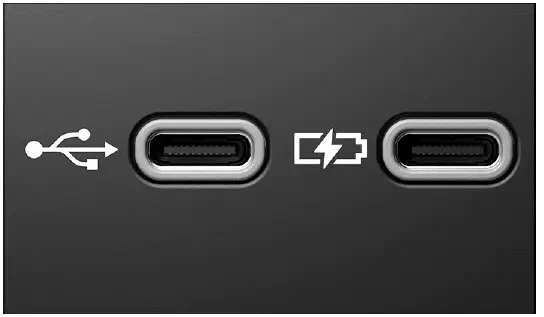
Fig. 133 USB-C connection in the vehicle (general example).
The vehicle may contain the following USB-C ports:
 Symbol for a USB port for
data transmission and charging.
Symbol for a USB port for
data transmission and charging.
 Symbol for a USB port for charging only.
You can find information about charging options and charging power here ⇒ Charging Options for Mobile Devices.
Use a data-capable USB-C port when you want to use media playback, App-Connect, smartphone integration, or data transfer. Use a charging-only port when you only need to charge a mobile device.
Possible USB port installation locations
The number and installation locations of USB ports depend on the vehicle and vehicle equipment and are not available in all countries.
- In the center console.
- At the base of the interior rearview mirror.
- In the storage compartment in the center console.
- In the compartment underneath the center armrest.
 USB ports at the rear seats
only come with a charging function.
USB ports at the rear seats
only come with a charging function.
Rear USB ports are intended mainly for passenger convenience. They may charge phones, tablets, or small devices, but they do not necessarily support media playback or data transfer to the Infotainment system.
Available Data Transfer Functions
The following USB data transfer functions are available depending on the vehicle equipment.
- App-Connect ⇒ App-Connect.
- Media playback ⇒ Media.
- Update, e.g. of the navigation data ⇒ Navigation data.
When using USB data functions in the Volkswagen Taos, the connected device may need to be unlocked, trusted, or approved on the device screen. Some phones also require permission before data transfer or smartphone integration can begin.
Instructions and restrictions
- Only use suitable USB connection cables. The USB connection cable must match the USB port installed in the vehicle.
- Dirty, overheated, or damaged data carriers are not to be used. Read and heed the information provided by the manufacturer.
- Differences in quality between data carriers from different manufacturers can cause problems with media playback.
- Using USB extension cables, USB adapters, or USB hubs may result in malfunctions or failure of the USB functions.
- Remove a USB device carefully and avoid pulling the cable by force, especially if the device is transferring data or playing media.
- Do not store USB devices where they may be exposed to strong heat, direct sunlight, moisture, or physical impact.
Bluetooth interface
Please read the introductory information and heed the Warnings and
Notice ⇒
 Introduction.
The Bluetooth interface is a wireless connection. It allows compatible mobile devices to communicate with the Infotainment system without a cable.
In Bluetooth audio mode, audio files on a mobile device connected via Bluetooth, such as a cell phone, can be played through the vehicle speakers.
Bluetooth audio mode is only possible in vehicles equipped with a factory-installed mobile phone interface that supports this function.
For the most stable Bluetooth connection, keep the mobile device inside the vehicle, avoid placing it behind metal objects, and make sure Bluetooth is enabled on both the phone and the Infotainment system.
Bluetooth profiles
A maximum of three mobile devices can be connected via Bluetooth at the same time.
The following Bluetooth profiles may be available in the specified version or in another version:
- HFP 1.7.
- Telephony and handsfree mode.
- A2DP 1.3.
- Music playback.
- AVRCP 1.6.
- Display and operation for music playback.
- Transfer of cover art.
- PBAP 1.2.
- Access to phone book and call lists.
- MAP 1.4.
- Access to SMS and e-mail.
The actual functions available after pairing depend on the mobile device, software version, privacy permissions, and the Bluetooth profiles supported by both the device and the vehicle.
Pairing Your Mobile Device to Your Vehicle Via Bluetooth
1. Tap MENU
 Network
 Mobile devices
 .
.
2. Activate Bluetooth.
3. Activate Visibility.
4. Open the list of available Bluetooth devices on your mobile device and select the device name for the Infotainment system.
5. Pay attention to messages on your mobile device and in the Infotainment system and confirm these if necessary.
If the pairing is successful, the data on the mobile device will be saved in the user profile.
6. Optional: confirm the message for transferring the data on the mobile device.
Only approve contact, message, or media access if you want that information to be available through the Infotainment system. In shared vehicles, remove paired devices and saved user profiles when they are no longer needed.
Controlling playback
The extent to which the mobile device connected via Bluetooth can be controlled via the Infotainment system depends on the mobile device.
For media players that support the AVRCP Bluetooth profile, playback from the mobile device can be started or stopped automatically when Bluetooth audio mode or another audio source is selected.
 Because of the large number
of possible mobile devices, it is not possible to guarantee that all functions
described can be
performed correctly.
Because of the large number
of possible mobile devices, it is not possible to guarantee that all functions
described can be
performed correctly.
Some phones may support music playback but not cover art, playlist browsing, message access, or full control through the Infotainment system. Updating the mobile device software may improve compatibility.
 In general, all warning and
operation tones on connected mobile devices, such as touch tones on a cell
phone, should be
switched off to avoid interference and malfunctions.
In general, all warning and
operation tones on connected mobile devices, such as touch tones on a cell
phone, should be
switched off to avoid interference and malfunctions.
 Depending on the device, if a
mobile device is connected to the Infotainment system via Bluetooth and the USB
port
Depending on the device, if a
mobile device is connected to the Infotainment system via Bluetooth and the USB
port
 at the same time, the Bluetooth audio connection may be automatically
disconnected.
at the same time, the Bluetooth audio connection may be automatically
disconnected.
If audio playback stops unexpectedly, check whether the device has switched from Bluetooth audio to USB, App-Connect, or another source. Selecting the desired audio source again may restore playback.
Connecting an External Audio Source via Wi-Fi
Please read the introductory information and heed the Warnings and
Notice ⇒
 Introduction.
The Wi-Fi connection is a wireless connection. It can be used for selected audio streaming functions when the connected device and Infotainment system support the required standard.
In Wi-Fi audio mode, sources such as cell phones connected via Wi-Fi can be used for audio streaming.
The availability of the Wi-Fi function depends on the country and the Infotainment system being used.
In the Volkswagen Taos, Wi-Fi audio streaming may offer another way to play media without connecting a cable. However, stable operation depends on the device app, Wi-Fi connection quality, media sharing settings, and supported formats.
Requirements
 The connected audio source has
a suitable app or supports media sharing using the UPnP standard.
The connected audio source has
a suitable app or supports media sharing using the UPnP standard.
 There must be a Wi-Fi
connection to the audio source.
There must be a Wi-Fi
connection to the audio source.
Starting Audio Streaming via Wi-Fi
1. Lower the volume on the Infotainment system.
2. Tap MENU
 to open the Media main
menu.
to open the Media main
menu.
3. Start the UPnP server application or a suitable app for audio streaming on the Wi-Fi audio source.
4. Tap
 and select
 Wi-Fi.
5. Follow the instructions shown on the Infotainment system screen and on the Wi-Fi audio source screen.
The function key for selecting the audio source
 in the Media main menu can vary if
another audio source is connected with
the Infotainment system, e.g. by USB
in the Media main menu can vary if
another audio source is connected with
the Infotainment system, e.g. by USB
 , and is selected.
After streaming starts, raise the volume gradually to a comfortable level. If the connection drops, check whether the phone is still connected to the correct Wi-Fi network and whether the media sharing app is still running.
Controlling playback
The extent to which the Wi-Fi audio source can be controlled by the Infotainment system depends on the type of Wi-Fi audio source that is connected.
Some sources allow track selection, pause, play, and browsing through the Infotainment system, while others may require direct control from the mobile device. For safer use while driving the Volkswagen Taos, set up the playlist or audio source before beginning the trip and avoid handling the device on the road.
Internet use in the vehicle
Introduction
To use selected In-Car Apps, Internet Radio streaming, online media services, or other connected functions, an Internet connection must be available in the vehicle. Depending on the country and vehicle equipment, the Volkswagen Taos can use the Internet through the hotspot of a mobile device, such as a cell phone, or through the vehicle's integrated eSIM ⇒ Setting up the Internet connection.
Regardless of whether the Internet connection is established through a mobile device hotspot or through the vehicle eSIM, the Infotainment system can also be used as a Wi-Fi hotspot for up to eight other mobile devices ⇒ Quick connection. This function depends on vehicle equipment and is not available in all vehicles.
Using the vehicle as a Wi-Fi hotspot can be useful for passengers who need Internet access on tablets, phones, or other mobile devices. Connection quality, data speed, and availability depend on the mobile network, the selected data plan, the number of connected devices, and the country in which the vehicle is being used.
 If you want to use the eSIM
for Internet access, you need to purchase data plans via the online shop of the
Volkswagen
mobile communications partner.
If you want to use the eSIM
for Internet access, you need to purchase data plans via the online shop of the
Volkswagen
mobile communications partner.
Setting up the Internet connection
Using the Internet in the vehicle via the eSIM
In order to use an Internet connection via the eSIM of the vehicle, you need to purchase data plans in the online shop of Volkswagen's external mobile network provider. If you have activated the Top up in vehicle function during registration, you can then purchase data plans directly in the vehicle via the Infotainment system.
This option allows the vehicle to access online services without relying on a separate phone hotspot. It may be especially convenient when several passengers need Wi-Fi access or when the driver wants selected online functions to operate through the vehicle's built-in data connection.
To activate the Internet connection via the eSIM:
1. Tap HOME
 Data connection.
Or: Tap MENU
 Data connection.
2. Activate Streaming via integrated data connection (eSIM).
 The option for using an
Internet connection in the vehicle via the eSIM depends on the vehicle equipment
and the country.
The option for using an
Internet connection in the vehicle via the eSIM depends on the vehicle equipment
and the country.
Using an Internet connection via a mobile device
 Depending on your mobile
data rate, additional costs, such as roaming fees, may result from downloading
and using data
plans online, especially in other countries. Volkswagen recommends using a
mobile phone plan with a flat rate data
package due to the possible volume of data. Information on this can be obtained
from the mobile network provider.
Depending on your mobile
data rate, additional costs, such as roaming fees, may result from downloading
and using data
plans online, especially in other countries. Volkswagen recommends using a
mobile phone plan with a flat rate data
package due to the possible volume of data. Information on this can be obtained
from the mobile network provider.
Using a phone hotspot can be practical when the vehicle eSIM is not available, when no vehicle data plan has been purchased, or when the driver prefers to use an existing mobile phone plan. Before connecting, check the phone's battery charge, mobile data allowance, roaming status, and hotspot settings.
1. Activate tethering/Wi-Fi hotspot on the mobile device, see the manufacturer's operating instructions.
2. Tap HOME
 Wi-Fi
Wi-Fi
 Wi-Fi:.
Or: Tap MENU
 Wi-Fi
Wi-Fi
 Wi-Fi:.
3. Tap Search for Wi-Fi.
The Infotainment system scans for Wi-Fi hotspots in the area. This scan process can take a few seconds.
4. Select the Wi-Fi network for the preferred mobile device.
5. Enter the mobile device network key in the Infotainment system and confirm it.
The Wi-Fi connection between the mobile device and the Infotainment system is established. It may be necessary to make further inputs on the mobile device in order to complete the connection.
For stable Internet use in the Volkswagen Taos, keep the mobile device inside the vehicle, avoid placing it where signal reception is blocked, and make sure the phone hotspot remains active while online services are being used.
 Due to the large number of
mobile devices that are available, there is no guarantee that all functions will
always be
available.
Due to the large number of
mobile devices that are available, there is no guarantee that all functions will
always be
available.
 The availability of the
function for using the Infotainment system as a Wi-Fi hotspot depends on the
country and may
vary.
The availability of the
function for using the Infotainment system as a Wi-Fi hotspot depends on the
country and may
vary.
Setting Up and Deactivating a Wi-Fi Hotspot
Depending on the vehicle equipment, the Infotainment system can be used as a Wi-Fi hotspot for Internet access for up to eight mobile devices, such as phones, tablets, or other compatible devices.
To enable the Infotainment system to be used as a Wi-Fi hotspot, an Internet connection is required, for example via the eSIM in the vehicle or via the hotspot of a mobile device ⇒ Setting up the Internet connection.
The possible types of Internet connections depend on the country and the Infotainment system being used. Data speed may be reduced when several devices are connected at the same time or when the mobile network signal is weak.
Determining network information
Requirements
 Your vehicle has been added to
your VW Car-Net account.
Your vehicle has been added to
your VW Car-Net account.
 You have paid for a data plan for
your vehicle.
You have paid for a data plan for
your vehicle.
1. Log in to your Volkswagen user account via the VW Car-Net app or the Car-Net portal and select the vehicle.
2. Select the network name (SSID) and network key (password) for the vehicle as follows:
- In the portal, under User
 Wi-Fi SSID and password.
 - Or: in the app, under User
 Wi-Fi
Wi-Fi
 SSID & password.
Keep the network key secure and share it only with trusted passengers. Anyone with access to the password may be able to connect a device to the vehicle hotspot if the feature is active.
Connecting to Wi-Fi
1. Tap HOME
 Wi-Fi
Wi-Fi
 Infotainment system as hotspot.
Or: Tap MENU
 Settings
 Wi-Fi
Wi-Fi
 Infotainment system as hotspot.
2. Tap Use as hotspot and activate it.
3. Search for available networks on the cell phone.
4. Select from the network names (SSID).
5. Enter and confirm the network key.
The Wi-Fi connection will be established. If necessary, you may need to enter additional information on the cell phone in order to complete the connection.
6. Optional:
Repeat the process to connect additional cell phones.
When several devices are connected to the Volkswagen Taos hotspot, streaming, downloads, navigation data, and app use may share the available data connection. For best performance, disconnect devices that are not being used.
Deactivating a Wi-Fi Hotspot
1. Tap HOME
 Wi-Fi
Wi-Fi
 Infotainment system as hotspot.
Or: Tap MENU
 Settings
 Wi-Fi
Wi-Fi
 Infotainment system as hotspot.
2. Tap Use as hotspot and deactivate it.
The Wi-Fi hotspot is deactivated.
Deactivate the hotspot when it is no longer needed to reduce unnecessary data use and limit access to the vehicle network. This is especially useful when the vehicle is shared, parked, or used by different drivers.
Quick connection
Quick connection makes it possible to set up a wireless local network quickly and easily with encryption. In several countries, the function can alternatively be carried out by scanning a QR code.
WPS with the Infotainment System as a Wi-Fi Hotspot
1. Tap MENU
 Wi-Fi
Wi-Fi
 Mobile hotspot Wi-Fi:.
2. Tap WPS quick connection (WPS button).
3. Activate WPS on the mobile device to be connected.
The Wi-Fi connection will be established. It may be necessary to make further inputs on the mobile device in order to complete the connection.
4. To connect additional mobile devices, repeat this process.
 Only one WPS connection can
be established at a time. If multiple connection attempts start at the same
time, all
connection attempts will fail.
Only one WPS connection can
be established at a time. If multiple connection attempts start at the same
time, all
connection attempts will fail.
WPS with Infotainment system as client
1. Tap MENU
 Settings
 Wi-Fi
Wi-Fi
 Wi-Fi.
2. Tap WPS quick connection (WPS button).
3. Activate WPS on the mobile device.
The Wi-Fi connection will be established. It may be necessary to make further inputs on the mobile device in order to complete the connection.
 WPS is not supported by all
mobile devices. In this case, connect manually:
WPS is not supported by all
mobile devices. In this case, connect manually:
1. Set up the Infotainment system as a Wi-Fi hotspot ⇒ Internet use in the vehicle.
2. Connecting the Infotainment system as a client to the hotspot of a mobile device ⇒ Setting Up and Deactivating a Wi- Fi Hotspot.
If quick connection fails, use the manual method with the SSID and password. Manual setup may take slightly longer, but it can be more reliable with devices that do not support WPS or QR-code pairing.
Technical Properties
The technical properties of the Internet connections in the vehicle listed here may differ depending on the equipment and country.
- Wi-Fi in accordance with IEEE 802.11 b/g/n.
- 2.4 GHz and 5 GHz data transfer.
- Two Wi-Fi modes at once:
- Tethering (2.4 GHz).
- 2.4 GHz access point.
- Up to eight mobile devices can be connected at the same time.
- Internet connection via Wi-Fi:
- Tethering via cell phone.
- Hotspot for clients in the vehicle.
- Apple CarPlay via Wi-Fi.
- Android Auto via Wi-Fi.
- Simplified pairing process via WPS, NFC or QR code.
Actual wireless performance in the Volkswagen Taos can depend on network coverage, interference, distance between devices, mobile device settings, and the number of connected users. Large downloads and high-quality streaming may require a stronger connection and more data.
Possible data connection types
SIM card in SIM card reader: Suitable SIM card in the SIM card reader.
Network settings
 Allow Internet
connection is
activated in the settings menu.
Allow Internet
connection is
activated in the settings menu.
A stable network connection is only possible with a compatible SIM card.
Bluetooth Profile rSAP: The Infotainment system is connected to a suitable cell phone via the Bluetooth profile rSAP. Allow Internet connection must be activated in the Network settings menu.
Mobile device: Use the Wi-Fi hotspot on a mobile device ⇒ Setting Up and Deactivating a Wi-Fi Hotspot.
eSIM (embedded SIM): The vehicle has a control module with installed eSIM card (SIM). In order to use the Wi-Fi hotspot, you need to purchase data plans via the In-Car Shop or via the online shop of our mobile communications partner.
The types of possible data connections depend on the country and equipment. Some connection types may not be available in all markets, and some may require an active service contract, a compatible mobile device, or a paid data plan.
Requirements
 Network settings
 Allow Internet connection is
activated in the settings menu.
Allow Internet connection is
activated in the settings menu.
Or: Data connection
 Integrated
data connection is activated.
Integrated
data connection is activated.
For reliable Internet use, check that the selected data connection is active before starting online services. If streaming, hotspot sharing, or In-Car Apps do not work as expected, confirm the data plan, mobile reception, Wi-Fi settings, and user account status before assuming there is a vehicle fault.
App-Connect
Introduction
App-Connect makes it possible to display and operate selected content and functions from a cell phone through the Infotainment system screen. In the Volkswagen Taos, this feature can make compatible smartphone apps easier to access while keeping the main controls within the vehicle display.
To use App-Connect with a wired connection, the cell phone must be connected to the Infotainment system via a USB interface that supports data transfer. A charging-only USB port is not suitable for App-Connect operation.
Some technologies can also be used with App-Connect Wireless via the Bluetooth interface and a Wi-Fi hotspot for the Infotainment system. Wireless operation depends on the smartphone, vehicle equipment, country, software version, and the supported connection standard.
The following technologies may be available:
- Apple CarPlay.
- Apple CarPlay Wireless.
- Android Auto.
- Android Auto Wireless.
The technologies listed above are operated by third parties and provided by Volkswagen. Volkswagen is not responsible if these technologies are canceled, discontinued, restricted, changed, or deactivated during the service life of the vehicle. Apps from third-party providers may be incompatible. It cannot be guaranteed that the apps offered will run on all cell phones, with all operating systems, or in all software versions.
Which App-Connect technologies are available to you depends on the country and on the cell phone in use. Apps can be based on many different designs and can also differ depending on the vehicle and country. The content, scope, and providers of the apps may vary. The apps provided by Volkswagen can also be changed, canceled, deactivated, reactivated, and enhanced without notice. Furthermore, some apps depend on the availability of services from third-party providers.
You can find more information on the Volkswagen website.
For best results in the Volkswagen Taos, keep the smartphone operating system and compatible apps updated. If an app does not appear, does not open correctly, or behaves differently than expected, the cause may be the phone settings, app permissions, regional availability, or the app provider.
 The use of apps and the required
mobile phone connection may be subject to additional charges.
The use of apps and the required
mobile phone connection may be subject to additional charges.
WARNING
Using apps while driving can distract from traffic. Driver distraction can cause serious accidents and fatal injuries.
- Only use apps and functions when the vehicle is stationary.
- Always drive attentively and responsibly.
- Set up navigation, music, calls, messages, and app permissions before beginning the trip whenever possible.
WARNING
If unsuitable apps are used or apps are not used correctly, this may result in vehicle damage and accidents with serious or even fatal injuries.
- Protect the cell phone and its apps from misuse.
- Only use trusted apps from reliable sources and avoid apps that may distract the driver or interfere with safe operation.
 Volkswagen is not responsible
for vehicle damage that is caused by low-quality or malfunctioning third-party
apps,
inadequate programming of third-party apps, insufficient network strength, data
loss, misuse of mobile devices, or malware
on data carriers, computers, tablets and cell phones.
Volkswagen is not responsible
for vehicle damage that is caused by low-quality or malfunctioning third-party
apps,
inadequate programming of third-party apps, insufficient network strength, data
loss, misuse of mobile devices, or malware
on data carriers, computers, tablets and cell phones.
Symbols and settings for App-Connect
Please read the introductory information and heed the Warnings and
Notice ⇒
 Introduction.
Symbols in the App-Connect menu
The symbol display depends on the vehicle equipment and the country. The available symbols may change depending on whether a compatible phone is connected, which technology is supported, and whether the connection is wired or wireless.
 or
or
 Show further information.
 Open the App-Connect settings
menu.
Open the App-Connect settings
menu.
 Select the Apple CarPlay
technology.
Select the Apple CarPlay
technology.
 Select the Android Auto technology.
Connecting a cell phone with App-Connect
Please read the introductory information and heed the Warnings and
Notice ⇒
 Introduction.
In order to use App-Connect or App-Connect Wireless, first pair the cell phone with the Infotainment system. When using App-Connect Wireless, the connection is initiated via Bluetooth and then established via the Wi-Fi hotspot for the Infotainment system.
Before starting the connection process, unlock the phone, make sure Bluetooth and Wi-Fi are enabled if wireless connection is required, and confirm that the phone supports the selected App-Connect technology. Some phones may also require app permissions, location services, voice assistant activation, or approval of data sharing.
 When using Apple CarPlay, the
Bluetooth connection is disconnected again when the connection via the Wi-Fi
hotspot for
the Infotainment system is established. When using Android Auto, the Bluetooth
connection remains active.
When using Apple CarPlay, the
Bluetooth connection is disconnected again when the connection via the Wi-Fi
hotspot for
the Infotainment system is established. When using Android Auto, the Bluetooth
connection remains active.
Сonnecting a cell phone for the first time
1. For App-Connect Wireless, connect the cell phone to Bluetooth and to the Wi-Fi hotspot of the Infotainment system ⇒ Bluetooth interface, ⇒ Setting Up and Deactivating a Wi-Fi Hotspot.
For App-Connect, connect the cell phone to the Infotainment system via USB cable.
2. Tap
 .
.
Or: tap MENU
 .
.
Or: press APP.
3. Select the cell phone and your preferred technology.
4. Allow the Infotainment system the required access. To do this, confirm authorization requests on the cell phone.
App-Connect or App-Connect Wireless is set up.
If any pop-up menus were dismissed during the connection process, App-Connect or App-Connect Wireless will not be available. In this case, Volkswagen recommends deleting the devices from the cell phone settings and Infotainment system and restarting the connection process.
In the Volkswagen Taos, a clean first-time setup is important because the phone and Infotainment system store connection permissions. If the wrong option was selected, remove the pairing from both devices and repeat the process from the beginning.
Apple CarPlay
Please read the introductory information and heed the Warnings and
Notice ⇒
 Introduction.
Requirements
The following requirements must be met in order to use Apple CarPlay:
 The iPhone must support Apple
CarPlay.
The iPhone must support Apple
CarPlay.
 Voice control (Siri) must be
activated on the iPhone.
Voice control (Siri) must be
activated on the iPhone.
 Apple CarPlay must be activated in
the iPhone settings without restrictions.
Apple CarPlay must be activated in
the iPhone settings without restrictions.
 For Apple CarPlay Wireless,
Bluetooth must be activated on the iPhone and the Infotainment system must be
activated
as a Wi-Fi hotspot.
For Apple CarPlay Wireless,
Bluetooth must be activated on the iPhone and the Infotainment system must be
activated
as a Wi-Fi hotspot.
 If Apple CarPlay Wireless cannot be
used, the iPhone must be connected to the infotainment system via a USB
connection with data transfer. Only USB ports with data transfer are suitable
for use with Apple CarPlay.
If Apple CarPlay Wireless cannot be
used, the iPhone must be connected to the infotainment system via a USB
connection with data transfer. Only USB ports with data transfer are suitable
for use with Apple CarPlay.
 The USB cable being used must be an
original cable from Apple.
The USB cable being used must be an
original cable from Apple.
 These technologies may not be
available in all countries.
These technologies may not be
available in all countries.
 Information on technical
requirements, compatible iPhones, certified apps and availability can be found
at the
Volkswagen and Apple CarPlay website or at an authorized Volkswagen dealer or
authorized Volkswagen Service Facility.
Information on technical
requirements, compatible iPhones, certified apps and availability can be found
at the
Volkswagen and Apple CarPlay website or at an authorized Volkswagen dealer or
authorized Volkswagen Service Facility.
Apple CarPlay can display compatible apps such as navigation, calls, messages, music, and selected communication services on the Infotainment system. The exact app selection and appearance are controlled by Apple and the app providers.
Starting Apple CarPlay
1. Tap MENU
 App-Connect
 to open the App-Connect main menu.
Or: press APP.
2. Tap
 Apple CarPlay to connect to
your iPhone.
Apple CarPlay to connect to
your iPhone.
Disconnecting
1. Tap
 in Apple CarPlay mode to
open the App-Connect main menu.
in Apple CarPlay mode to
open the App-Connect main menu.
2. To end the active connection, tap
 or
or
 .
.
The presentation of the function keys in the display may vary.
Special conditions
During an active connection with Apple CarPlay, the following conditions apply:
- For an iPhone connected with the Infotainment system via Apple CarPlay, phone functions can only be accessed via Apple CarPlay.
- The connected iPhone cannot be used as a media device in the Media main menu.
- It is not possible to use the internal navigation and Apple CarPlay navigation at the same time. The route guidance which was started last ends the previous active one.
- Depending on your Infotainment system, you can view information about telephone operation in the instrument cluster display.
- Depending on your Infotainment system and the navigation app used, you can view upcoming turns in the instrument cluster display.
- You can accept or decline incoming calls or end a call in progress using the buttons on the multi-function steering wheel.
When Apple CarPlay is active, the iPhone handles many phone, navigation, and media functions through the CarPlay interface. If you want to return to native Volkswagen Taos Infotainment functions, exit Apple CarPlay or disconnect the iPhone.
Voice control
The "voice control" function depends on the vehicle equipment.
1. Tap
 briefly to start the
Infotainment system voice control.
briefly to start the
Infotainment system voice control.
Or: to start voice control (Siri) on the connected iPhone, tap and hold
 .
.
Android Auto
Please read the introductory information and heed the Warnings and
Notice ⇒
 Introduction.
Requirements
The following requirements must be met in order to use Android Auto:
 The smartphone must support
Android Auto.
The smartphone must support
Android Auto.
 An Android Auto app must be
installed on the smartphone.
An Android Auto app must be
installed on the smartphone.
 For Android Auto Wireless,
Bluetooth must be activated on your smartphone and in the Infotainment system.
The Infotainment system must also be
activated as a Wi-Fi hotspot.
For Android Auto Wireless,
Bluetooth must be activated on your smartphone and in the Infotainment system.
The Infotainment system must also be
activated as a Wi-Fi hotspot.
 If Android Auto Wireless cannot be
used, the smartphone must be connected to the Infotainment system with a USB
connection that allows data transfer. Only USB ports with data transfer are
suitable for use with Android Auto.
If Android Auto Wireless cannot be
used, the smartphone must be connected to the Infotainment system with a USB
connection that allows data transfer. Only USB ports with data transfer are
suitable for use with Android Auto.
 The USB cable used must be an
original cable from your smartphone manufacturer.
The USB cable used must be an
original cable from your smartphone manufacturer.
 These technologies may not be
available in all countries.
These technologies may not be
available in all countries.
 Information on technical
requirements, compatible smartphones, certified apps and availability can be
found on the
Volkswagen and Android Auto websites or at an authorized Volkswagen dealer or
authorized Volkswagen Service Facility.
Information on technical
requirements, compatible smartphones, certified apps and availability can be
found on the
Volkswagen and Android Auto websites or at an authorized Volkswagen dealer or
authorized Volkswagen Service Facility.
Android Auto can bring compatible smartphone functions, such as navigation, communication, music, and selected apps, to the Infotainment system screen. The exact layout, app availability, and operating behavior depend on Google, the smartphone manufacturer, the app provider, and the phone software version.
Starting Android Auto
1. Tap MENU
 to open the
App-Connect main menu.
to open the
App-Connect main menu.
Or: press APP.
2. Tap
 Android Auto to
establish the connection with the smartphone.
Android Auto to
establish the connection with the smartphone.
Disconnecting
1. Tap Close
 in Android Auto
mode to open the App-Connect main menu.
in Android Auto
mode to open the App-Connect main menu.
2. Tap
 to end the active
connection.
to end the active
connection.
Special conditions
During an active connection with Android Auto, the following conditions apply:
- An active Android Auto device can also be connected with the Infotainment system via Bluetooth (hands-free profile, HFP) at the same time.
- Phone functions are possible through Android Auto. The Infotainment system phone function can also be used if the Android Auto device is connected to the Infotainment system via Bluetooth at the same time.
- An active Android Auto device cannot be used as a media device in the Media main menu.
- It is not possible to use the internal navigation and Android Auto navigation at the same time. The route guidance which was started last ends the previous active one.
- You can view information about telephone operation in the instrument cluster display.
- Depending on your Infotainment system and the navigation app used, you can view upcoming turns in the instrument cluster display.
- You can accept or decline incoming calls or end a call in progress using the buttons on the multi-function steering wheel.
When Android Auto is active in the Volkswagen Taos, the connected smartphone controls many navigation, calling, messaging, and media functions through the Android Auto interface. Some functions may still require Bluetooth permissions or app approval on the phone.
Voice control
The "voice control" function depends on the vehicle equipment.
1. Tap
 briefly to start the
Infotainment system voice control.
briefly to start the
Infotainment system voice control.
Or: Tap and hold the
 button to
start voice control of the connected smartphone.
button to
start voice control of the connected smartphone.
Use voice control whenever practical to reduce manual interaction with the screen. Even with App-Connect, Apple CarPlay, or Android Auto active, the driver remains responsible for monitoring traffic and operating the Volkswagen Taos safely.